<?xml version="1.0" encoding="UTF-8"?><?xml-stylesheet href="/assets/atom.xsl" type="text/xsl"?><feed
	xmlns="http://www.w3.org/2005/Atom"
	xmlns:thr="http://purl.org/syndication/thread/1.0"
	xml:lang="en-US"
	><title>Sacha Chua - tag - ido</title>
	<subtitle>Emacs, sketches, and life</subtitle>
	<link rel="self" type="application/atom+xml" href="https://sachachua.com/blog/tag/ido/feed/atom/index.xml" />
  <link rel="alternate" type="text/html" href="https://sachachua.com/blog/tag/ido" />
  <id>https://sachachua.com/blog/tag/ido/feed/atom/index.xml</id>
  <generator uri="https://11ty.dev">11ty</generator>
	<updated>2014-03-31T12:00:51Z</updated>
<entry>
		<title type="html">Emacs Basics: Call commands by name with M-x (with tips for better completion using ido or helm)</title>
		<link rel="alternate" type="text/html" href="https://sachachua.com/blog/2014/03/emacs-basics-call-commands-name-m-x-tips-better-completion-using-ido-helm/"/>
		<author><name><![CDATA[Sacha Chua]]></name></author>
		<updated>2014-11-30T22:13:22Z</updated>
    <published>2014-03-31T12:00:51Z</published>
    <category term="emacs" />
<category term="emacs-basics" />
<category term="podcast" />
		<id>https://sachachua.com/blog/?p=27062</id>
		<content type="html"><![CDATA[<p>Emacs has way too many keyboard shortcuts to memorize. Fortunately, you can call commands by name by typing <kbd>M-x</kbd> and the name of the command. <kbd>M-</kbd> stands for the Meta key. If your keyboard does not have a Meta key (and most don't, these days), use Alt or Option. For example, on a PC keyboard, you can type <kbd>Alt-x</kbd>. Alternatively, you can replace <kbd>Meta</kbd> with <kbd>ESC</kbd>. <kbd>M-x</kbd> then becomes <kbd>ESC x</kbd>.</p>
<p><iframe loading="lazy" src="https://www.youtube.com/embed/m7GlzatkvyY" width="640" height="480" frameborder="0" allowfullscreen="allowfullscreen"></iframe></p>
<p>If you know the name of the command to execute, you can type it after <kbd>M-x</kbd>, and then press <kbd>RET</kbd> (the <kbd>Return</kbd> key, which is the same as the <kbd>Enter</kbd> key). For example, <kbd>M-x find-file</kbd> opens a file. <kbd>M-x save-buffer</kbd> saves the current file. You can use <kbd>TAB</kbd> to complete words. Use <kbd>&lt;up&gt;</kbd> and <kbd>&lt;down&gt;</kbd> to go through your command history.</p>
<p>What if you don't know the name of the command to execute? You can use <kbd>M-x apropos-command</kbd> to search for the command using keywords. If you know the keyboard shortcut or you can find the command on a menu, you can also use <kbd>M-x describe-key</kbd> and then do the keyboard shortcut or select it from the menu.</p>
<p>If a command you execute has a keyboard shortcut, it will flash briefly at the bottom of your screen. For example:</p>
<pre class="example">You can run the command `find-file' with C-x C-f</pre>
<p>Using <kbd>TAB</kbd> for completion can be a little slow. Here are two ways to make that and a whole lot of other things faster: <b>ido</b> and <b>helm</b>. To explore these approaches, you will need to add the MELPA package repository to your configuration. To set that up, add the following to the beginning of your <code>~/.emacs.d/init.el</code> file.</p>
<div class="org-src-container">
<pre class="src src-emacs-lisp">(package-initialize)
(add-to-list 'package-archives '("melpa" . "http://melpa.milkbox.net/packages/") t)</pre>
</div>
<p>Then use <kbd>M-x eval-buffer</kbd> to load the changes into your current Emacs, and use <kbd>M-x package-refresh-contents</kbd> to reload the list of packages.</p>
<div id="outline-container-sec-2" class="outline-2">
<h3 id="sec-2">Helm mode</h3>
<div id="text-2" class="outline-text-2">
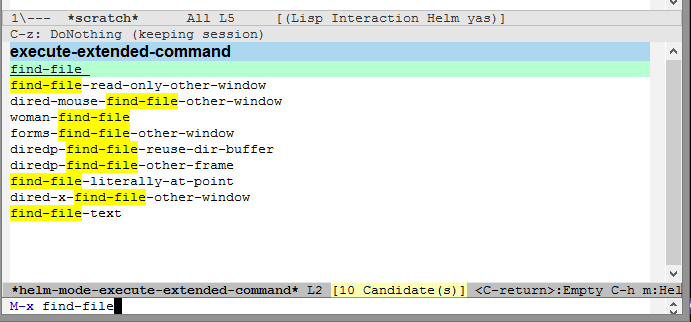
<p>This is what completion with Helm looks like:</p>
<div class="figure">
<p><img src="https://sachachua.com/blog/wp-content/uploads/2014/03/wpid-2014-03-17-13_06_54-c__sacha_personal_organizer.org_.png" alt="2014-03-17 13_06_54-c__sacha_personal_organizer.org.png" width="640"></p>
<p><span class="figure-number">Figure 2:</span> Helm</p>
</div>
<p>Use <kbd>M-x package-install</kbd> to install the <code>helm</code> package. Then you can try it out with <kbd>M-x helm-mode</kbd> . After you start Helm mode, try <kbd>M-x</kbd> again. You can type in multiple words to search for a command, and you can use <kbd>&lt;up&gt;</kbd> and <kbd>&lt;down&gt;</kbd> to go through completions. Use <kbd>M-p</kbd> and <kbd>M-n</kbd> to go through your command history.</p>
<p>If you like it, here's some code that you can add to your <code>~/.emacs.d/init.el</code> file to load it automatically next time, and to tweak it for more convenience.</p>
<div class="org-src-container">
<pre class="src src-emacs-lisp">(require 'helm-config) 
(helm-mode 1)</pre>
</div>
<p>Use <kbd>M-x eval-buffer</kbd> to load your changes.</p>
<p>If you change your mind and want to disable <code>helm-mode</code>, you can toggle it off with <kbd>M-x helm-mode</kbd> .</p>
<p>If you like how that works, you may want to <code>(global-set-key (kbd "M-x") 'helm-M-x)</code>. If you do, you'll be able to see keybindings when you call commands with <code>M-x</code>. Note that if you want to use a prefix argument (ex: <code>C-u</code>), you will need to do that <em>after</em> calling <code>M-x</code> instead of before.
</p></div>
</div>
<div id="outline-container-sec-1" class="outline-2">
<h3 id="sec-1">Ido, ido-hacks, smex, ido-vertical-mode, and flx-ido</h3>
<div id="text-1" class="outline-text-2">
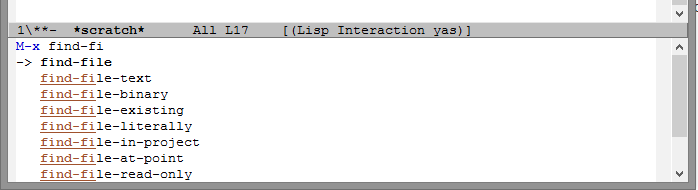
<p>Ido is like Helm, but it takes a different approach. Here's what this combination will get you:</p>
<div class="figure">
<p><img src="https://sachachua.com/blog/wp-content/uploads/2014/03/wpid-2014-03-17-12_40_40-MELPA.png" alt="2014-03-17 12_40_40-MELPA.png" width="640"></p>
<p><span class="figure-number">Figure 1:</span> ido, smex, ido-vertical-mode, and flx-ido</p>
</div>
<p>If you want to give this a try, remove or comment out <code>(helm-mode 1)</code> from your <code>~/.emacs.d/init.el</code> (if you added it), and disable helm-mode if you still have it active from the previous section.</p>
<p>To set Ido up, use <kbd>M-x package-install</kbd> to install <code>ido</code>, <code>smex</code>, <code>ido-vertical-mode</code>, <code>ido-hacks</code>, and <code>flx-ido</code>.</p>
<p>After the packages are installed, add the following code to your <code>~/.emacs.d/init.el</code> .</p>
<div class="org-src-container">
<pre class="src src-emacs-lisp">(ido-mode 1)
(require 'ido-hacks nil t)
(if (commandp 'ido-vertical-mode) 
    (progn
      (ido-vertical-mode 1)
      (setq ido-vertical-define-keys 'C-n-C-p-up-down-left-right)))
(if (commandp 'smex)
    (global-set-key (kbd "M-x") 'smex))
(if (commandp 'flx-ido-mode)
    (flx-ido-mode 1))</pre>
</div>
<p>Use <kbd>M-x eval-buffer</kbd> to load your changes, then try <kbd>M-x</kbd> again. You should now have much better completion. You'll be able to call commands by typing in part of their names. Use <kbd>&lt;up&gt;</kbd> and <kbd>&lt;down&gt;</kbd> to go through the completion options, and use <kbd>&lt;left&gt;</kbd> and <kbd>&lt;right&gt;</kbd> to go through your history.</p>
<p>Try it for a week. If you like it, keep it. If you don't like it, try the Helm approach.</p>
</div>
</div>
<div id="outline-container-sec-3" class="outline-2">
<h3 id="sec-3">Other tips</h3>
<div id="text-3" class="outline-text-2">
<p>When you learn keyboard shortcuts, try to remember the names of the commands as well. You can do that with <kbd>C-h k</kbd> (<code>describe-key</code>). For example, <kbd>M-x</kbd> calls the command <code>execute-extended-command</code>. That way, even if you forget the keyboard shortcut, you can call the command by name.</p>
<p>If you forget the name of the command and you don't know the keyboard shortcut for it, you can look for it in the menus or in the help file. You can open the help file with <kbd>C-h i</kbd> (<code>info</code>). You can also use <kbd>M-x apropos-command</kbd> to search through the commands that you can call with <kbd>M-x</kbd>.</p>
<p>Make your own cheat sheet with frequently-used keyboard shortcuts and commands to help you learn more about Emacs. Good luck!</p>
<div id="attachment_27064" style="width: 650px" class="wp-caption alignnone"><a href="https://sachachua.com/blog/wp-content/uploads/2014/03/emacs-basics-meta-x.png"><img aria-describedby="caption-attachment-27064" loading="lazy" class="size-medium wp-image-27064" src="https://sachachua.com/blog/wp-content/uploads/2014/03/emacs-basics-meta-x-640x448.png" alt="Emacs Basics: M-x" width="640" height="448" srcset="https://sachachua.com/blog/wp-content/uploads/2014/03/emacs-basics-meta-x-640x448.png 640w, https://sachachua.com/blog/wp-content/uploads/2014/03/emacs-basics-meta-x-280x196.png 280w, https://sachachua.com/blog/wp-content/uploads/2014/03/emacs-basics-meta-x.png 1500w" sizes="(max-width: 640px) 100vw, 640px"></a><p id="caption-attachment-27064" class="wp-caption-text">Emacs Basics: M-x</p></div>
<p><a href="http://archive.org/download/EmacsBasicsCallingCommandsByNameWithMX/Emacs-Basics-Calling-commands-by-name-with-M-x.mp3">You can download the MP3 from archive.org.</a></p>
</div>
</div>
<div class="powerpress_player" id="powerpress_player_5465"><audio class="wp-audio-shortcode" id="audio-27062-9" preload="none" style="width: 100%;" controls="controls"><source type="audio/mpeg" src="http://archive.org/download/EmacsBasicsCallingCommandsByNameWithMX/Emacs-Basics-Calling-commands-by-name-with-M-x.mp3?_=9"><a href="http://archive.org/download/EmacsBasicsCallingCommandsByNameWithMX/Emacs-Basics-Calling-commands-by-name-with-M-x.mp3">http://archive.org/download/EmacsBasicsCallingCommandsByNameWithMX/Emacs-Basics-Calling-commands-by-name-with-M-x.mp3</a></audio></div><p class="powerpress_links powerpress_links_mp3">Podcast: <a href="http://archive.org/download/EmacsBasicsCallingCommandsByNameWithMX/Emacs-Basics-Calling-commands-by-name-with-M-x.mp3" class="powerpress_link_pinw" target="_blank" title="Play in new window" onclick="return powerpress_pinw('https://sachachua.com/blog/?powerpress_pinw=27062-podcast');" rel="nofollow">Play in new window</a> | <a href="http://archive.org/download/EmacsBasicsCallingCommandsByNameWithMX/Emacs-Basics-Calling-commands-by-name-with-M-x.mp3" class="powerpress_link_d" title="Download" rel="nofollow" download="Emacs-Basics-Calling-commands-by-name-with-M-x.mp3">Download</a></p><p class="powerpress_links powerpress_subscribe_links">Subscribe: <a href="https://sachachua.com/blog/feed/podcast/" class="powerpress_link_subscribe powerpress_link_subscribe_rss" title="Subscribe via RSS" rel="nofollow">RSS</a></p><p>You can <a href="mailto:sacha@sachachua.com?subject=Comment%20on%20https%3A%2F%2Fsachachua.com%2Fblog%2F2014%2F03%2Femacs-basics-call-commands-name-m-x-tips-better-completion-using-ido-helm%2F&body=Name%20you%20want%20to%20be%20credited%20by%20(if%20any)%3A%20%0AMessage%3A%20%0ACan%20I%20share%20your%20comment%20so%20other%20people%20can%20learn%20from%20it%3F%20Yes%2FNo%0A">e-mail me at sacha@sachachua.com</a>.</p>]]></content>
		</entry><entry>
		<title type="html">Emacs: Working with multiple source trees</title>
		<link rel="alternate" type="text/html" href="https://sachachua.com/blog/2008/12/emacs-working-with-multiple-source-trees/"/>
		<author><name><![CDATA[Sacha Chua]]></name></author>
		<updated>2008-12-20T01:00:33Z</updated>
    <published>2008-12-19T20:00:33Z</published>
    <category term="emacs" />
		<id>https://sachachua.com/blog/?p=5463</id>
		<content type="html"><![CDATA[<p>As a developer, I often find myself working with multiple trees of source code. Sometimes, I&#8217;m comparing the trunk and the branches. Sometimes, I&#8217;m copying ideas from one place to another. Sometimes, I&#8217;m working on one project and an urgent defect comes in for a different project. With good development environments such as Eclipse, I&#8217;d still need to click on the project or directory in order to change my context, and then use a keyboard shortcut to find the resource in that tree. </p>
<p>With an awesome development environment like my customized Emacs, however, I can easily juggle multiple source trees. Here&#8217;s the macro I wrote to make setting this up much easier:</p>
<pre>
(defmacro sacha/file-cache-setup-tree (prefix shortcut directories)
  "Set up the file-cache tree for PREFIX using the keyboard SHORTCUT.
DIRECTORIES should be a list of directory names."
  `(let ((file-cache-alist nil)
	 (directories ,directories))
     (file-cache-clear-cache)
     (while directories
       (file-cache-add-directory-using-find (car directories))
       (setq directories (cdr directories)))
     (setq ,(intern (concat "sacha/file-cache-" prefix "-alist")) file-cache-alist)
     (defun ,(intern (concat "sacha/file-cache-ido-find-" prefix)) ()
       (interactive)
       (let ((file-cache-alist ,(intern (concat "sacha/file-cache-" prefix "-alist"))))
	 (call-interactively 'file-cache-ido-find-file)))
     (global-set-key (kbd ,shortcut)
		     (quote ,(intern (concat "sacha/file-cache-ido-find-" prefix))))))
</pre>
<p>With that, I can use the following to map C-c p to finding files in my personal directories:</p>
<pre>
(sacha/file-cache-setup-tree
 "personal"
 "C-c p"
 '("/var/www/html/drupal"
   "~/elisp"
   "~/personal"))
</pre>
<p>I&#8217;ve also set up keyboard shortcuts for the other trees I&#8217;m working on.</p>
<p>You&#8217;ll need file-cache, ido, and probably something like this:</p>
<pre>
(require 'filecache)
(require 'ido)
(defun file-cache-ido-find-file (file)
  "Using ido, interactively open file from file cache'.
First select a file, matched using ido-switch-buffer against the contents
in `file-cache-alist'. If the file exist in more than one
directory, select directory. Lastly the file is opened."
  (interactive (list (file-cache-ido-read "File: "
                                          (mapcar
                                           (lambda (x)
                                             (car x))
                                           file-cache-alist))))
  (let* ((record (assoc file file-cache-alist)))
    (find-file
     (expand-file-name
      file
      (if (= (length record) 2)
          (car (cdr record))
        (file-cache-ido-read
         (format "Find %s in dir: " file) (cdr record)))))))

(defun file-cache-ido-read (prompt choices)
  (let ((ido-make-buffer-list-hook
	 (lambda ()
	   (setq ido-temp-list choices))))
    (ido-read-buffer prompt)))
(add-to-list 'file-cache-filter-regexps "docs/html")
(add-to-list 'file-cache-filter-regexps "\\.svn-base$")
(add-to-list 'file-cache-filter-regexps "\\.dump$")
</pre>
<p>You can <a href="mailto:sacha@sachachua.com?subject=Comment%20on%20https%3A%2F%2Fsachachua.com%2Fblog%2F2008%2F12%2Femacs-working-with-multiple-source-trees%2F&body=Name%20you%20want%20to%20be%20credited%20by%20(if%20any)%3A%20%0AMessage%3A%20%0ACan%20I%20share%20your%20comment%20so%20other%20people%20can%20learn%20from%20it%3F%20Yes%2FNo%0A">e-mail me at sacha@sachachua.com</a>.</p>]]></content>
		</entry>
</feed>