<?xml version="1.0" encoding="UTF-8"?><?xml-stylesheet href="/assets/atom.xsl" type="text/xsl"?><feed
	xmlns="http://www.w3.org/2005/Atom"
	xmlns:thr="http://purl.org/syndication/thread/1.0"
	xml:lang="en-US"
	><title>Sacha Chua - tag - windows8</title>
	<subtitle>Emacs, sketches, and life</subtitle>
	<link rel="self" type="application/atom+xml" href="https://sachachua.com/blog/tag/windows8/feed/atom/index.xml" />
  <link rel="alternate" type="text/html" href="https://sachachua.com/blog/tag/windows8" />
  <id>https://sachachua.com/blog/tag/windows8/feed/atom/index.xml</id>
  <generator uri="https://11ty.dev">11ty</generator>
	<updated>2013-02-04T13:00:00Z</updated>
<entry>
		<title type="html">Disabling touch on Windows 8 on a Lenovo X220 tablet</title>
		<link rel="alternate" type="text/html" href="https://sachachua.com/blog/2013/02/disabling-touch-on-windows-8-on-a-lenovo-x220-tablet/"/>
		<author><name><![CDATA[Sacha Chua]]></name></author>
		<updated>2014-01-08T05:01:04Z</updated>
    <published>2013-02-04T13:00:00Z</published>
    <category term="geek" />
		<id>https://sachachua.com/blog/?p=24428</id>
		<content type="html"><![CDATA[<p>Update 2014/01/07: You can use the Device Manager to disable the touchscreen devices. I found mine under Human Interface Devices.</p>
<p>I often draw with my stylus in tablet mode. Palm detection doesn’t work particularly well, so I prefer to disable the touch screen and use either my stylus or a mouse. Unfortunately, the option for disabling the touch screen disappeared when I upgraded to Windows 8:</p>
<p><a href="https://sachachua.com/blog/wp-content/uploads/2013/01/image5.png"><img loading="lazy" style="background-image: none; padding-top: 0px; padding-left: 0px; display: inline; padding-right: 0px; border: 0px;" title="image" alt="image" src="https://sachachua.com/blog/wp-content/uploads/2013/01/image_thumb5.png" width="310" height="395" border="0"></a></p>
<p>See, no checklist to disable it!</p>
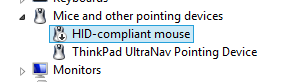
<p>After much searching, experimenting, and updating of drivers, I’ve found something that lets me keep the pen capability while disabling touch. I needed to go into Device Manager and disable the HID-compliant mouse there:</p>
<p><a href="https://sachachua.com/blog/wp-content/uploads/2013/01/image6.png"><img loading="lazy" style="background-image: none; padding-top: 0px; padding-left: 0px; margin: 0px; display: inline; padding-right: 0px; border: 0px;" title="image" alt="image" src="https://sachachua.com/blog/wp-content/uploads/2013/01/image_thumb6.png" width="308" height="82" border="0"></a></p>
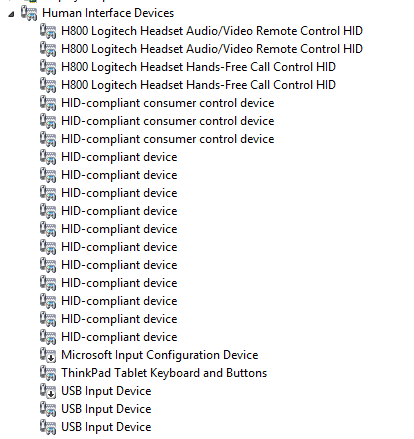
<p>I missed it because I was trying to disable all sorts of other things under Human Interface Devices:</p>
<p><a href="https://sachachua.com/blog/wp-content/uploads/2013/01/image7.png"><img loading="lazy" style="background-image: none; padding-top: 0px; padding-left: 0px; margin: 0px; display: inline; padding-right: 0px; border: 0px;" title="image" alt="image" src="https://sachachua.com/blog/wp-content/uploads/2013/01/image_thumb7.png" width="414" height="439" border="0"></a></p>
<p>… which includes the pen input. I thought the touch input was there as well, but no luck. Good thing I checked other categories.</p>
<p>I’m glad I’m doing this now instead of right before a conference or on an international trip. Next time, I should make sure to check driver support, not just software. I don’t know if that would’ve completely avoided the problem, though, as many of the web pages I came across talked about other solutions.</p>
<p>Onward!</p>
<p>You can <a href="https://sachachua.com/blog/2013/02/disabling-touch-on-windows-8-on-a-lenovo-x220-tablet/#comment">view 2 comments</a> or <a href="mailto:sacha@sachachua.com?subject=Comment%20on%20https%3A%2F%2Fsachachua.com%2Fblog%2F2013%2F02%2Fdisabling-touch-on-windows-8-on-a-lenovo-x220-tablet%2F&body=Name%20you%20want%20to%20be%20credited%20by%20(if%20any)%3A%20%0AMessage%3A%20%0ACan%20I%20share%20your%20comment%20so%20other%20people%20can%20learn%20from%20it%3F%20Yes%2FNo%0A">e-mail me at sacha@sachachua.com</a>.</p>]]></content>
		</entry>
</feed>