<?xml version="1.0" encoding="UTF-8"?><?xml-stylesheet href="/assets/atom.xsl" type="text/xsl"?><feed
	xmlns="http://www.w3.org/2005/Atom"
	xmlns:thr="http://purl.org/syndication/thread/1.0"
	xml:lang="en-US"
	><title>Sacha Chua - tag - evernote</title>
	<subtitle>Emacs, sketches, and life</subtitle>
	<link rel="self" type="application/atom+xml" href="https://sachachua.com/blog/tag/evernote/feed/atom/index.xml" />
  <link rel="alternate" type="text/html" href="https://sachachua.com/blog/tag/evernote" />
  <id>https://sachachua.com/blog/tag/evernote/feed/atom/index.xml</id>
  <generator uri="https://11ty.dev">11ty</generator>
	<updated>2014-03-20T12:00:21Z</updated>
<entry>
		<title type="html">Emacs, Evernote (through enscript.exe), and Org links</title>
		<link rel="alternate" type="text/html" href="https://sachachua.com/blog/2014/03/emacs-evernote-enscript-exe-org-links/"/>
		<author><name><![CDATA[Sacha Chua]]></name></author>
		<updated>2019-06-12T19:03:19Z</updated>
    <published>2014-03-20T12:00:21Z</published>
    <category term="emacs" />
<category term="org" />
		<id>https://sachachua.com/blog/?p=27043</id>
		<content type="html"><![CDATA[<p>I&apos;ve given myself permission to </p><div class="sketch-thumbnail"><a class="photoswipe" href="https://sketches.sachachua.com/filename/2014-03-11%20Deciding%20how%20to%20spend%20time%20%23time.png" data-src="https://sketches.sachachua.com/static/2014-03-11%20Deciding%20how%20to%20spend%20time%20%23time.png" data-title="2014-03-11 Deciding how to spend time #time" data-w="3294" data-h="2518"><picture>
      <img src="https://sketches.sachachua.com/thumbnails/2014-03-11%20Deciding%20how%20to%20spend%20time%20%23time.png" width="" height="" alt="2014-03-11 Deciding how to spend time #time" loading="lazy" decoding="async">
      <figcaption>2014-03-11 Deciding how to spend time #time</figcaption>
    </picture></a></div> with various technical ideas and prototypes every day. This means Emacs geekery is going to turn up on my blog more often. =) Here&apos;s a recent hack that I put together to make my weekly reviews a little easier.<p></p>
<p>I skim a lot of blog posts on my phone using the <a href="http://feedly.com">Feedly</a> app. (See: <a href="https://sachachua.com/blog/2014/01/read-blogs-efficiently-feed-reader/">How to read blogs efficiently with a feed reader</a>.) I save the posts I want to follow up on or include in my weekly round-up. I have an&#xA0;<a href="http://ifttt.com">If This Then That</a>&#xA0;recipe that monitors my saved items and stashes them in Evernote with the <code>roundup</code> tag.&#xA0;If I come across other interesting pages while browsing on my computer, I use the Evernote Web Clipper to save those pages with the <code>roundup</code> tag as well.</p>
<p>In the past, I selected a range of notes to export from Evernote, saved them to a file, and used my&#xA0;sacha/evernote-extract-links-for-review function to&#xA0;extract the titles and URLs. I opened each of the pages with <kbd>C-c C-o</kbd> (<code>org-open-at-point</code>) to refresh my memory and follow up. I deleted lines that were no longer relevant. Since IFTTT had changed to rewriting the URLs instead of leaving the source URLs alone, I copied the original URLs and replaced the links that were in Org.</p>
<p>This is Emacs, though, and even that can be smoothened with a little scripting. Now I can use the code below to expand URLs and to open all the URLs in the region.</p>
<div class="outline-2">
<h3>Link-related convenience functions</h3>
<p>I picked this up from&#xA0;<a href="http://www.emacswiki.org/emacs/AlexSchroederConfigOrientalibombus">http://www.emacswiki.org/emacs/AlexSchroederConfigOrientalibombus</a> .</p>
<div class="outline-text-2">
<div class="org-src-container">
<pre class="src src-emacs-lisp">(<span style="color: #a52a2a; font-weight: bold;">defun</span> <span style="color: #008b8b;">kensanata/resolve-redirect</span> (url)
  <span style="background-color: #f2f2f2;">&quot;Resolve shortened URL by launching `curl &#45;&#45;head&apos; and parsing the result.&quot;</span>
  (<span style="color: #a52a2a; font-weight: bold;">let*</span> ((curl (shell-command-to-string
                (format <span style="color: #ff00ff; background-color: #f2f2f2;">&quot;curl &#45;&#45;silent &#45;&#45;head %s&quot;</span> url)))
         (location (<span style="color: #a52a2a; font-weight: bold;">when</span> (and (string-match <span style="color: #ff00ff; background-color: #f2f2f2;">&quot;\\`HTTP/1\.1 301&quot;</span> curl)
                              (string-match <span style="color: #ff00ff; background-color: #f2f2f2;">&quot;^Location: </span><span style="color: #ff00ff; background-color: #f2f2f2; font-weight: bold;">\\</span><span style="color: #ff00ff; background-color: #f2f2f2; font-weight: bold;">(</span><span style="color: #ff00ff; background-color: #f2f2f2;">.*</span><span style="color: #ff00ff; background-color: #f2f2f2; font-weight: bold;">\\</span><span style="color: #ff00ff; background-color: #f2f2f2; font-weight: bold;">)</span><span style="color: #ff00ff; background-color: #f2f2f2;">&quot;</span> curl))
                     (match-string 1 curl))))
    (or location url)))

(<span style="color: #a52a2a; font-weight: bold;">defun</span> <span style="color: #008b8b;">sacha/resolve-urls-in-region</span> (beg end)
  <span style="background-color: #f2f2f2;">&quot;Expand URLs between BEG and END.&quot;</span>
  (interactive <span style="color: #ff00ff; background-color: #f2f2f2;">&quot;r&quot;</span>)
  (<span style="color: #a52a2a; font-weight: bold;">save-excursion</span>
    (<span style="color: #a52a2a; font-weight: bold;">save-restriction</span>
      (narrow-to-region beg end)
      (goto-char (point-min))
      (<span style="color: #a52a2a; font-weight: bold;">while</span> (re-search-forward org-bracket-link-regexp nil t)
        (replace-match (<span style="color: #a52a2a; font-weight: bold;">save-match-data</span> (kensanata/resolve-redirect
                                         (match-string 1))) t t nil 1))
      (goto-char (point-min))
      (<span style="color: #a52a2a; font-weight: bold;">while</span> (re-search-forward org-link-re-with-space nil t)
        (replace-match (<span style="color: #a52a2a; font-weight: bold;">save-match-data</span> (kensanata/resolve-redirect
                                         (match-string 0))) t t nil)))))

(<span style="color: #a52a2a; font-weight: bold;">defun</span> <span style="color: #008b8b;">sacha/open-urls-in-region</span> (beg end)
  <span style="background-color: #f2f2f2;">&quot;Open URLs between BEG and END.&quot;</span>
  (interactive <span style="color: #ff00ff; background-color: #f2f2f2;">&quot;r&quot;</span>)
  (<span style="color: #a52a2a; font-weight: bold;">save-excursion</span>
    (<span style="color: #a52a2a; font-weight: bold;">save-restriction</span>
      (narrow-to-region beg end)
      (goto-char (point-min))
      (<span style="color: #a52a2a; font-weight: bold;">while</span> (re-search-forward org-plain-link-re nil t)
        (org-open-at-point)))))</pre>
</div>
</div>
</div>
<div class="outline-2">
<h3>Evernote-related extract</h3>
<p>Evernote on Windows doesn&apos;t have the same kind of scripting capabilities that Evernote on the Mac has, but it turns out you can still do a fair bit of scripting with the <code>enscript</code> tool.</p>
<div class="outline-text-2">
<div class="org-src-container">
<pre class="src src-emacs-lisp">(<span style="color: #a52a2a; font-weight: bold;">defun</span> <span style="color: #008b8b;">sacha/evernote-export-and-extract</span> (start-date end-date)
  <span style="background-color: #f2f2f2;">&quot;Extract notes created on or after START-DATE and before END-DATE.&quot;</span>
  (<span style="color: #a52a2a; font-weight: bold;">let</span> ((filename <span style="color: #ff00ff; background-color: #f2f2f2;">&quot;c:/sacha/tmp/Evernote.enex&quot;</span>))
    (call-process 
     <span style="color: #ff00ff; background-color: #f2f2f2;">&quot;c:/Program Files (x86)/Evernote/Evernote/enscript.exe&quot;</span>
     nil t t
     <span style="color: #ff00ff; background-color: #f2f2f2;">&quot;exportNotes&quot;</span>
     <span style="color: #ff00ff; background-color: #f2f2f2;">&quot;/q&quot;</span> (concat
           <span style="color: #ff00ff; background-color: #f2f2f2;">&quot; tag:roundup&quot;</span>
           <span style="color: #ff00ff; background-color: #f2f2f2;">&quot; created:&quot;</span> (replace-regexp-in-string <span style="color: #ff00ff; background-color: #f2f2f2;">&quot;-&quot;</span> <span style="color: #ff00ff; background-color: #f2f2f2;">&quot;&quot;</span> start-date)
           <span style="color: #ff00ff; background-color: #f2f2f2;">&quot; -created:&quot;</span> (replace-regexp-in-string <span style="color: #ff00ff; background-color: #f2f2f2;">&quot;-&quot;</span> <span style="color: #ff00ff; background-color: #f2f2f2;">&quot;&quot;</span> end-date))
     <span style="color: #ff00ff; background-color: #f2f2f2;">&quot;/f&quot;</span> filename)
    (sacha/evernote-extract-links-for-review filename)))

(<span style="color: #a52a2a; font-weight: bold;">defun</span> <span style="color: #008b8b;">sacha/evernote-extract-links-for-review</span> (filename)
  <span style="background-color: #f2f2f2;">&quot;Extract note names and URLs from FILENAME.</span>
<span style="background-color: #f2f2f2;">     The file should be an ENEX export.&quot;</span>
  (interactive (list (read-file-name <span style="color: #ff00ff; background-color: #f2f2f2;">&quot;File: &quot;</span>)
                     (org-read-date)
                     (org-read-date)))
  (<span style="color: #a52a2a; font-weight: bold;">let</span> (list)
    (<span style="color: #a52a2a; font-weight: bold;">with-temp-buffer</span>
      (insert-file-contents filename)
      (goto-char (point-min))
      (<span style="color: #a52a2a; font-weight: bold;">while</span> (re-search-forward <span style="color: #ff00ff; background-color: #f2f2f2;">&quot;&lt;title&gt;</span><span style="color: #ff00ff; background-color: #f2f2f2; font-weight: bold;">\\</span><span style="color: #ff00ff; background-color: #f2f2f2; font-weight: bold;">(</span><span style="color: #ff00ff; background-color: #f2f2f2;">.+?</span><span style="color: #ff00ff; background-color: #f2f2f2; font-weight: bold;">\\</span><span style="color: #ff00ff; background-color: #f2f2f2; font-weight: bold;">)</span><span style="color: #ff00ff; background-color: #f2f2f2;">&lt;/title&gt;</span><span style="color: #ff00ff; background-color: #f2f2f2; font-weight: bold;">\\</span><span style="color: #ff00ff; background-color: #f2f2f2; font-weight: bold;">(</span><span style="color: #ff00ff; background-color: #f2f2f2;">.*?\n</span><span style="color: #ff00ff; background-color: #f2f2f2; font-weight: bold;">\\</span><span style="color: #ff00ff; background-color: #f2f2f2; font-weight: bold;">)</span><span style="color: #ff00ff; background-color: #f2f2f2;">*?.*?href=\&quot;</span><span style="color: #ff00ff; background-color: #f2f2f2; font-weight: bold;">\\</span><span style="color: #ff00ff; background-color: #f2f2f2; font-weight: bold;">(</span><span style="color: #ff00ff; background-color: #f2f2f2;">.*?</span><span style="color: #ff00ff; background-color: #f2f2f2; font-weight: bold;">\\</span><span style="color: #ff00ff; background-color: #f2f2f2; font-weight: bold;">)</span><span style="color: #ff00ff; background-color: #f2f2f2;">\&quot;&quot;</span> nil t)
        (setq list
              (cons
               (cons
                (match-string-no-properties 1)
                (match-string-no-properties 3)) list))))
    (setq list
          (mapconcat (<span style="color: #a52a2a; font-weight: bold;">lambda</span> (x)
                       (concat <span style="color: #ff00ff; background-color: #f2f2f2;">&quot;- [[&quot;</span>
                               (kensanata/resolve-redirect (cdr x))
                               <span style="color: #ff00ff; background-color: #f2f2f2;">&quot;][&quot;</span> (car x) <span style="color: #ff00ff; background-color: #f2f2f2;">&quot;]]: &quot;</span>)) list <span style="color: #ff00ff; background-color: #f2f2f2;">&quot;\n&quot;</span>))
          (<span style="color: #a52a2a; font-weight: bold;">if</span> (called-interactively-p &apos;any)
              (insert list)
            list)))</pre>
</div>
</div>
</div>
<p>Let&apos;s see how this new workflow goes. =) If you&apos;re curious, you can check out the rest of my <a href="https://sachachua.com/dotemacs#weekly-review">weekly-review-related code in my Emacs configuration</a>. </p>
<p>You can <a href="mailto:sacha@sachachua.com?subject=Comment%20on%20https%3A%2F%2Fsachachua.com%2Fblog%2F2014%2F03%2Femacs-evernote-enscript-exe-org-links%2F&body=Name%20you%20want%20to%20be%20credited%20by%20(if%20any)%3A%20%0AMessage%3A%20%0ACan%20I%20share%20your%20comment%20so%20other%20people%20can%20learn%20from%20it%3F%20Yes%2FNo%0A">e-mail me at sacha@sachachua.com</a>.</p>]]></content>
		</entry><entry>
		<title type="html">Thinking about how I can use Evernote more effectively</title>
		<link rel="alternate" type="text/html" href="https://sachachua.com/blog/2013/08/thinking-about-how-i-can-use-evernote-more-effectively/"/>
		<author><name><![CDATA[Sacha Chua]]></name></author>
		<updated>2013-08-12T23:50:58Z</updated>
    <published>2013-08-14T12:00:00Z</published>
    <category term="kaizen" />
<category term="notetaking" />
		<id>https://sachachua.com/blog/?p=25628</id>
		<content type="html"><![CDATA[<p><a href="https://sachachua.com/blog/wp-content/uploads/2013/08/image.png"><img loading="lazy" style="background-image: none; padding-top: 0px; padding-left: 0px; margin: 0px; display: inline; padding-right: 0px; border: 0px;" title="image" alt="image" src="https://sachachua.com/blog/wp-content/uploads/2013/08/image_thumb.png" width="640" height="227" border="0"></a></p>
<p>Every so often, I go on a tagging and filing spree. It took me a couple of hours, but I finally cleared the 700+ items that had piled up in my Evernote inbox. I was thinking about how to get even better at this because Timothy Kenny told me how he has a virtual assistant file the notes in his Microsoft OneNote notebooks.</p>
<p>Is my filing really worth it? Is it something I value enough to pay someone else to do? Could I explain what I wanted clearly enough so that other people could do it? Could I benefit from organization even if I&#8217;m not the one organizing things myself?</p>
<p>Before I dig into that, I should probably examine this question: <b>What do I use Evernote for, and what could &#8220;better&#8221; look like?</b></p>
<p>Here&#8217;s a quick summary of the different reasons I use Evernote:</p>
<table border="2" frame="hsides" rules="groups" cellspacing="0" cellpadding="6">
<colgroup>
<col class="left">
<col class="left">
<col class="left">
<col class="left"></colgroup>
<thead>
<tr>
<th class="left" scope="col">Type of note</th>
<th class="left" scope="col">Description</th>
<th class="left" scope="col">Organization</th>
<th class="left" scope="col">Improvements</th>
</tr>
</thead>
<tbody>
<tr>
<td class="left">Sketchnotes</td>
<td class="left">Collection of my sketchnotes for easy searching</td>
<td class="left">Shared notebook, tagged by type</td>
<td class="left">Fine the way it is</td>
</tr>
<tr>
<td class="left">Inspiration</td>
<td class="left">Interesting sketchnotes, images, and web designs</td>
<td class="left">Notebook, tagged by technique</td>
<td class="left">Tag and file when clipping, identify key areas of focus</td>
</tr>
<tr>
<td class="left">Visual library</td>
<td class="left">Visual thesaurus / sketches of abstract and concrete stuff</td>
<td class="left">Notebook, titles updated, duplicates merged</td>
<td class="left">Improve workflow &#8211; delegate titling?</td>
</tr>
<tr>
<td class="left">E-mail archives</td>
<td class="left">Keep important information no matter which e-mail inbox it&#8217;s from</td>
<td class="left">None at the moment; notebook and tags</td>
<td class="left">Tag and file when forwarding</td>
</tr>
<tr>
<td class="left">People, conversations</td>
<td class="left">Quick notes from my mobile</td>
<td class="left">Notebook</td>
<td class="left">Add full names; consider Evernote Hello for mobile input?</td>
</tr>
<tr>
<td class="left">Ideas and thoughts</td>
<td class="left">Quick notes from my mobile</td>
<td class="left">Notebook</td>
<td class="left">Should have weekly task to review and act on; separate from main Inbox?</td>
</tr>
<tr>
<td class="left">Actions</td>
<td class="left">Quick notes from my mobile, when I&#8217;m away from Org</td>
<td class="left">Notebook</td>
<td class="left">Should have weekly task to review and act on / copy into my Org file</td>
</tr>
<tr>
<td class="left">Cooking</td>
<td class="left">Recipes, usually with pictures</td>
<td class="left">Notebook, tagged by technique or dietary considerations</td>
<td class="left">Review periodically; update when cooked</td>
</tr>
<tr>
<td class="left">Wishlist</td>
<td class="left">Resources to buy after more consideration</td>
<td class="left">None at the moment; tags, probably</td>
<td class="left">Tag and file when clipping</td>
</tr>
<tr>
<td class="left">Reference books</td>
<td class="left">Books held by the Toronto Reference Library, to request next time I&#8217;m there</td>
<td class="left">Notebook, search</td>
<td class="left">Go to the library more often</td>
</tr>
<tr>
<td class="left">Letters</td>
<td class="left">Scanned letters so that I can review correspondence</td>
<td class="left">Notebook, tagged by person</td>
<td class="left">Fine the way it is</td>
</tr>
<tr>
<td class="left">PDFs</td>
<td class="left">Makes PDFs more searchable</td>
<td class="left">Inbox, occasionally tagged</td>
<td class="left">Use Web Clipper to specify tags and file in Notes right away</td>
</tr>
<tr>
<td class="left">Blog posts / casual browsing</td>
<td class="left">Interesting things that might be useful someday, especially for related items</td>
<td class="left">Notebook</td>
<td class="left">Use Web Clipper to file in Notes right away</td>
</tr>
<tr>
<td class="left">Other sketches</td>
<td class="left">Scanned sketchbook pages so that I can review</td>
<td class="left">Notebook</td>
<td class="left">Fine the way it is</td>
</tr>
<tr>
<td class="left">Private notes</td>
<td class="left">Things that I might want to remember or write about someday, but not yet</td>
<td class="left">Notebook</td>
<td class="left">Have an outline?</td>
</tr>
<tr>
<td class="left">Blog post ideas</td>
<td class="left">Inspiration, drafts, links, images, checklists</td>
<td class="left">Notebook, some tags</td>
<td class="left">Add links to outline?</td>
</tr>
<tr>
<td class="left">Business and personal receipts</td>
<td class="left">Back up business and personal receipts; possibly be able to search through them</td>
<td class="left">Notebook; tags, or just use folders on my drive?</td>
<td class="left">Decide where to do the organization; have an assistant retitle before import?</td>
</tr>
<tr>
<td class="left">Blog research?</td>
<td class="left">Clipped pages so they&#8217;ll show up in Google Search and related notes, and so that I can review them even if the source disappears (payoff &gt; 2 years)</td>
<td class="left">No organization; search by keywords or sourceurl:</td>
<td class="left">Clip, but remove from inbox quickly</td>
</tr>
</tbody>
</table>
<p>I have different types of clipping activities:</p>
<ul>
<li><b>A. Researching a topic</b>, which results in lots of clips related to a single topic. Usually in preparation for a blog post or as a way to answer a question.</li>
<li><b>B. Casual browsing and clipping</b> based on blog posts, news items, or other things I come across; roughly topical (ex: skill development), although may be tagged and filed in different places</li>
<li><b>C. Saving reference material from email or websites</b>, which should be filed</li>
<li><b>D. Adding notes on the go using my phone</b>, which should be reviewed and acted on or filed when I get back to my computer</li>
<li><b>E. Automatically clipping things based on external input</b>, using services like IFTTT to archive my blog posts.</li>
</ul>
<p>There are several strategies I could use to manage my Evernote collection. I can choose different strategies based on the results that I want. Here are some possibilities:</p>
<ul>
<li><b>A. Spend a few extra seconds tagging and filing things when I clip them.</b> Advantage: I touch something once, so I don&#8217;t have to recall the context of an item.</li>
<li><b>B. Capture everything into an !Inbox, then file shortly after clipping.</b> Advantages: I can select multiple entries and tag them give them the same tags, and copy all the note links in one go.</li>
<li><b>C. Capture everything into an !Inbox, then file weekly.</b> This is my current strategy. This isn&#8217;t working out too well &#8211; things pile up.</li>
<li><b>D. Capture everything into an !Inbox, then teach someone to file.</b></li>
</ul>
<p>I think strategy B will give me a good improvement in performance without me needing to bring in someone else.</p>
<p>One of the areas that I could generally improve in is integrating the notes into my outlines and plans. Instead of just collecting the information, maybe I can use Copy Note Link and then spend some time adding those links to my outline. Alternatively, I can copy the source URL right then and there, find where it fits into my outline, and paste the link. If org2blog respects comments, I could even use that as part of my workflow.</p>
<p>If I were to outsource more tasks in order to improve my effectiveness at learning, I think I&#8217;d gain more value from finding someone who can speed-read like I do, filtering through lots of cruft on the Internet to find high-quality resources. They could then clip those pages into Evernote for my review. That might be worth an experiment or two… Let&#8217;s find out how that works!</p>
<p>You can <a href="https://sachachua.com/blog/2013/08/thinking-about-how-i-can-use-evernote-more-effectively/#comment">view 7 comments</a> or <a href="mailto:sacha@sachachua.com?subject=Comment%20on%20https%3A%2F%2Fsachachua.com%2Fblog%2F2013%2F08%2Fthinking-about-how-i-can-use-evernote-more-effectively%2F&body=Name%20you%20want%20to%20be%20credited%20by%20(if%20any)%3A%20%0AMessage%3A%20%0ACan%20I%20share%20your%20comment%20so%20other%20people%20can%20learn%20from%20it%3F%20Yes%2FNo%0A">e-mail me at sacha@sachachua.com</a>.</p>]]></content>
		</entry><entry>
		<title type="html">Mural.ly and Evernote: Redesigning my landing page</title>
		<link rel="alternate" type="text/html" href="https://sachachua.com/blog/2013/07/mural-ly-and-evernote-redesigning-my-landing-page/"/>
		<author><name><![CDATA[Sacha Chua]]></name></author>
		<updated>2014-03-21T02:11:43Z</updated>
    <published>2013-07-17T15:30:00Z</published>
    <category term="geek" />
<category term="visual" />
		<id>https://sachachua.com/blog/?p=25332</id>
		<content type="html"><![CDATA[<p>Hello, I&#8217;m Sacha Chua, and today I&#8217;m going to show you some of the ways I&#8217;ve been using <a href="http://mural.ly">Mural.ly</a>&#8216;s new Evernote integration as well as the Areas and Outline feature. (You can enable the Areas &amp; Outline feature by clicking on your account picture, choosing Settings, and choosing Labs.)</p>
<p>You can watch the screencast (&lt; 2 minutes), or read the blog post below.<br>
<iframe loading="lazy" width="640" height="360" src="https://www.youtube-nocookie.com/embed/gM_SiPKahe4" frameborder="0" allowfullscreen=""></iframe></p>
<p>I was recently working on a small redesign of my blog&#8217;s landing page at LivingAnAwesomeLife.com. While giving people my card, I realized that my personal blog can be&#8230; a little overwhelming for people. Time to design a new page!</p>
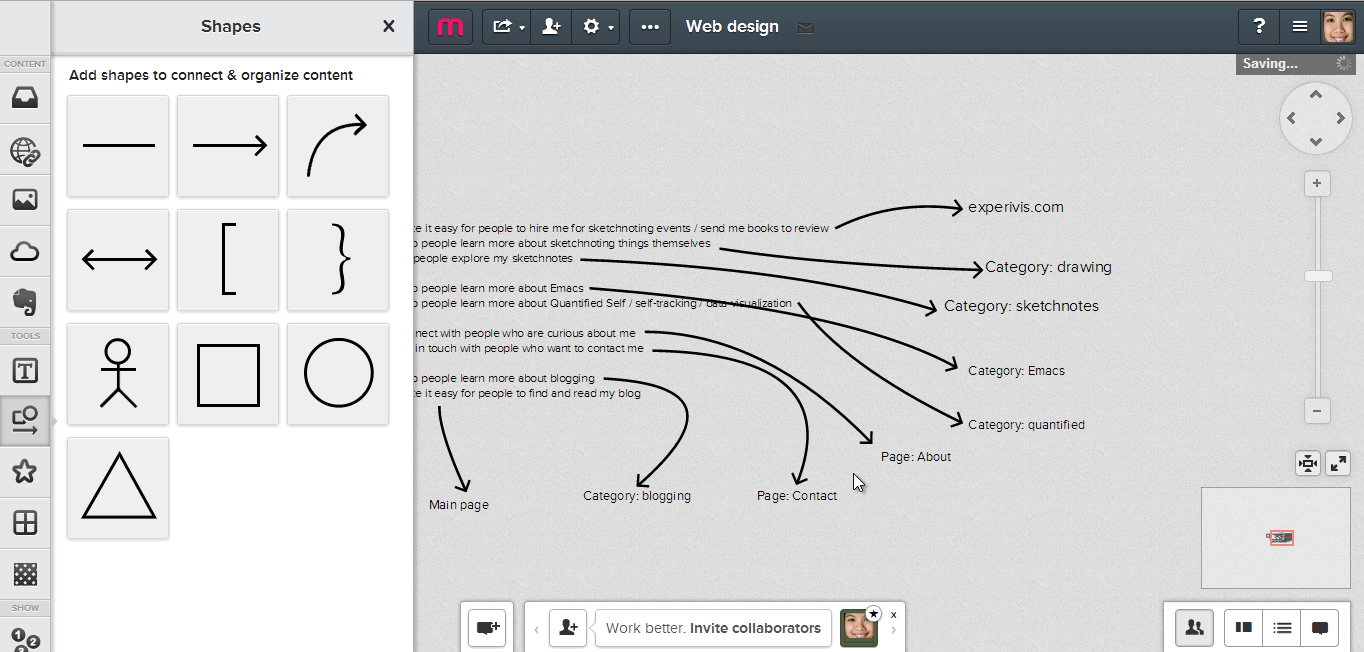
<p>First, I started with some ideas for what I want this page to do. The text tool makes this easier, and I can draw connectors between items. Even if I move the items around, they stay connected.</p>
<p><a href="https://sachachua.com/blog/wp-content/uploads/2013/07/Untitled-Time-0_00_3003.png"><img loading="lazy" style="background-image: none; padding-top: 0px; padding-left: 0px; display: inline; padding-right: 0px; border-width: 0px;" title="Untitled (Time 0_00_30;03)" alt="Untitled (Time 0_00_30;03)" src="https://sachachua.com/blog/wp-content/uploads/2013/07/Untitled-Time-0_00_3003_thumb.png" width="640" height="306" border="0"></a></p>
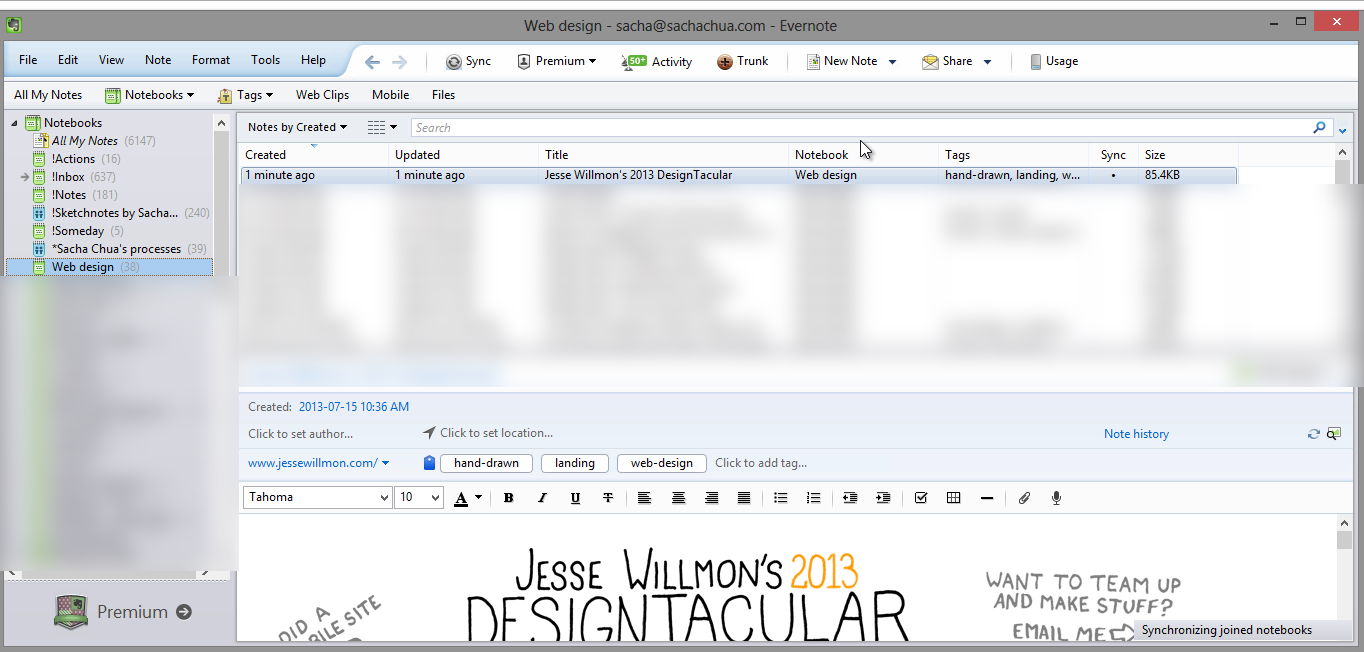
<p>There&#8217;s a lot of great inspiration out there, so I use the Evernote Web Clipper to save images and webpages to my notebooks. I file the relevant notes in my project notebook and tag them with keywords.</p>
<p><a href="https://sachachua.com/blog/wp-content/uploads/2013/07/Untitled-Time-0_00_4006.png"><img loading="lazy" style="background-image: none; padding-top: 0px; padding-left: 0px; display: inline; padding-right: 0px; border-width: 0px;" title="Untitled (Time 0_00_40;06)" alt="Untitled (Time 0_00_40;06)" src="https://sachachua.com/blog/wp-content/uploads/2013/07/Untitled-Time-0_00_4006_thumb.png" width="640" height="306" border="0"></a></p>
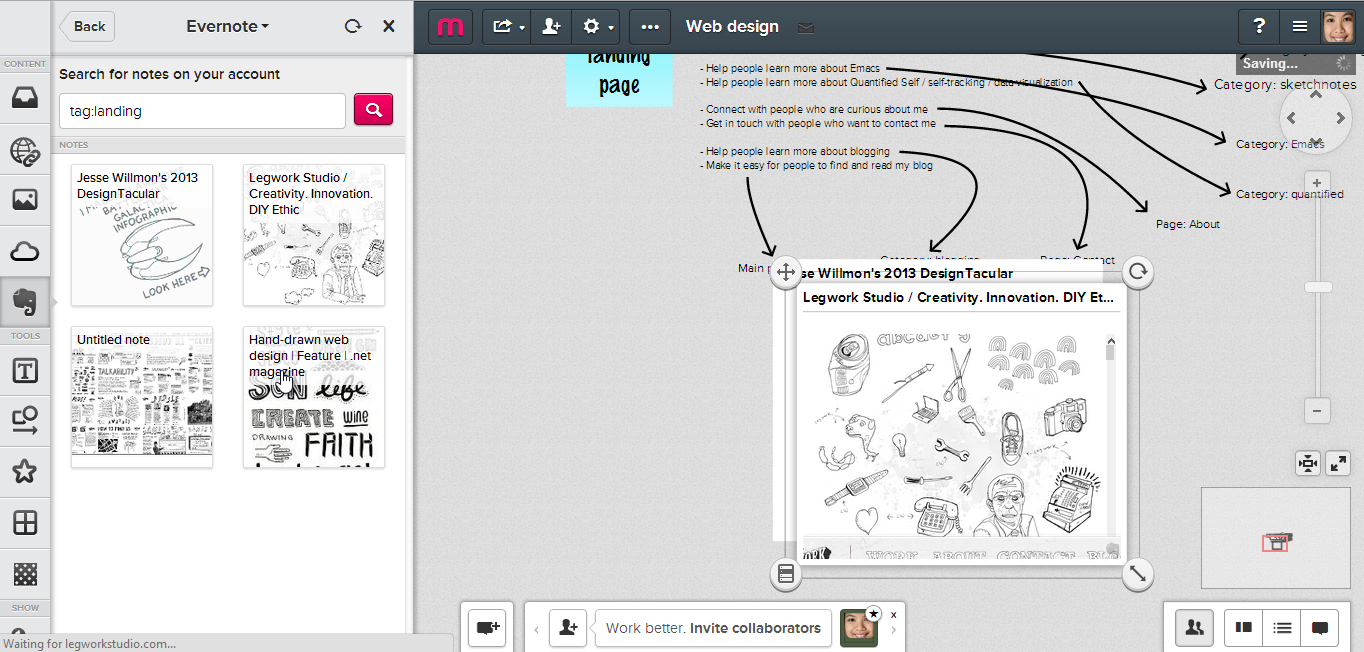
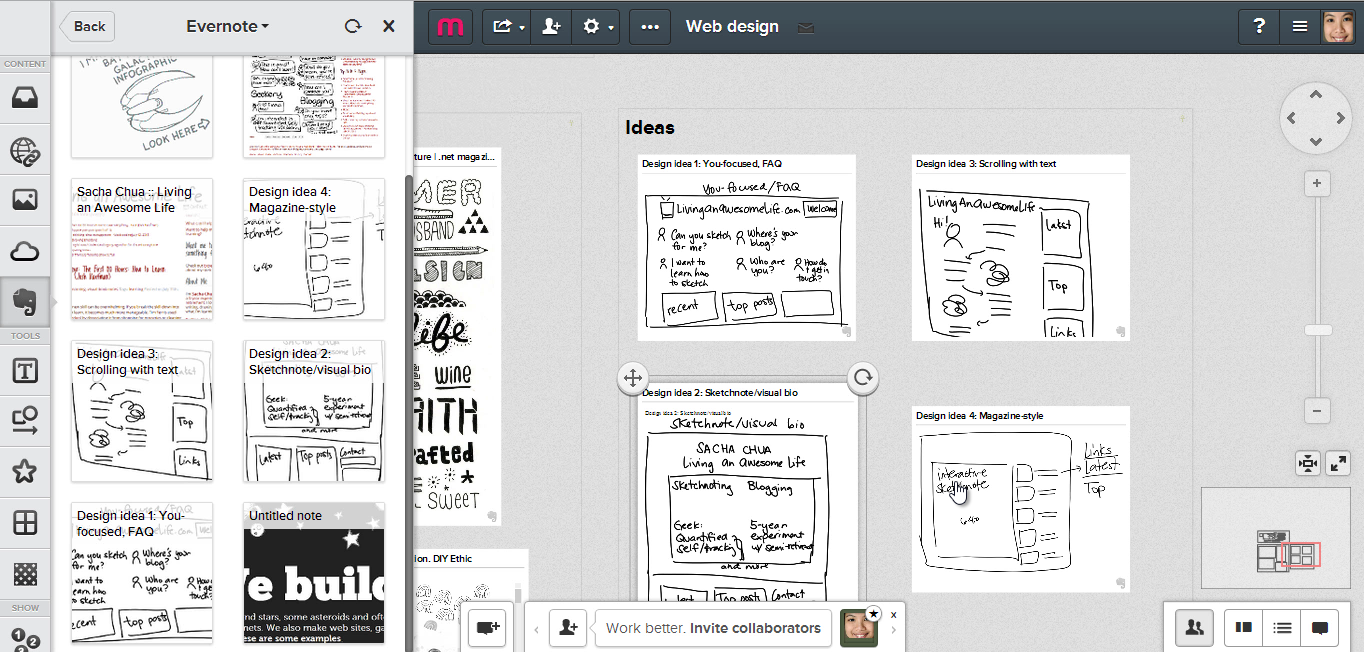
<p>To import the notes into Mural.ly, I click on the Evernote icon. You can search across all of your notebooks, or you can pick a notebook to browse and search within it. Adding the note is as simple as clicking on the thumbnail.</p>
<p><a href="https://sachachua.com/blog/wp-content/uploads/2013/07/Untitled-Time-0_00_5007.png"><img loading="lazy" style="background-image: none; padding-top: 0px; padding-left: 0px; display: inline; padding-right: 0px; border-width: 0px;" title="Untitled (Time 0_00_50;07)" alt="Untitled (Time 0_00_50;07)" src="https://sachachua.com/blog/wp-content/uploads/2013/07/Untitled-Time-0_00_5007_thumb.png" width="640" height="306" border="0"></a></p>
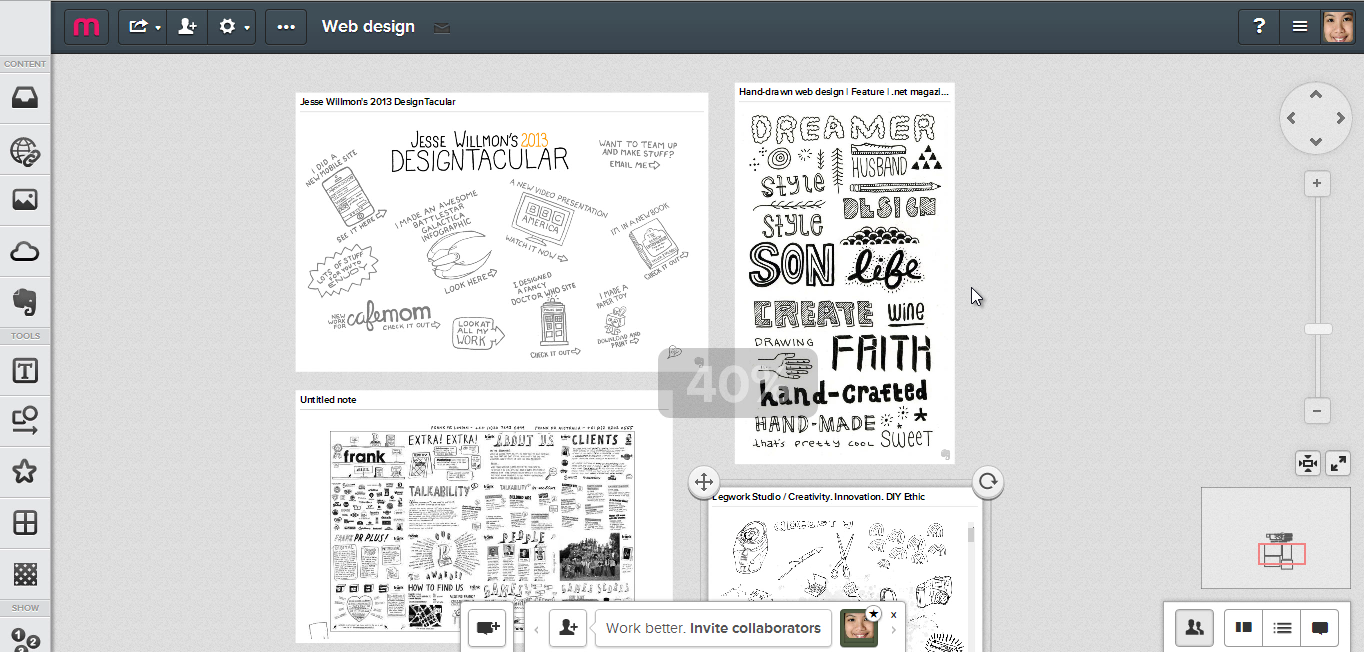
<p>One of the things I really like about Mural.ly is the ability to see multiple Evernote items together, like clipping things to a virtual bulletin board.</p>
<p><a href="https://sachachua.com/blog/wp-content/uploads/2013/07/Untitled-Time-0_00_5919.png"><img loading="lazy" style="background-image: none; padding-top: 0px; padding-left: 0px; display: inline; padding-right: 0px; border-width: 0px;" title="Untitled (Time 0_00_59;19)" alt="Untitled (Time 0_00_59;19)" src="https://sachachua.com/blog/wp-content/uploads/2013/07/Untitled-Time-0_00_5919_thumb.png" width="640" height="306" border="0"></a></p>
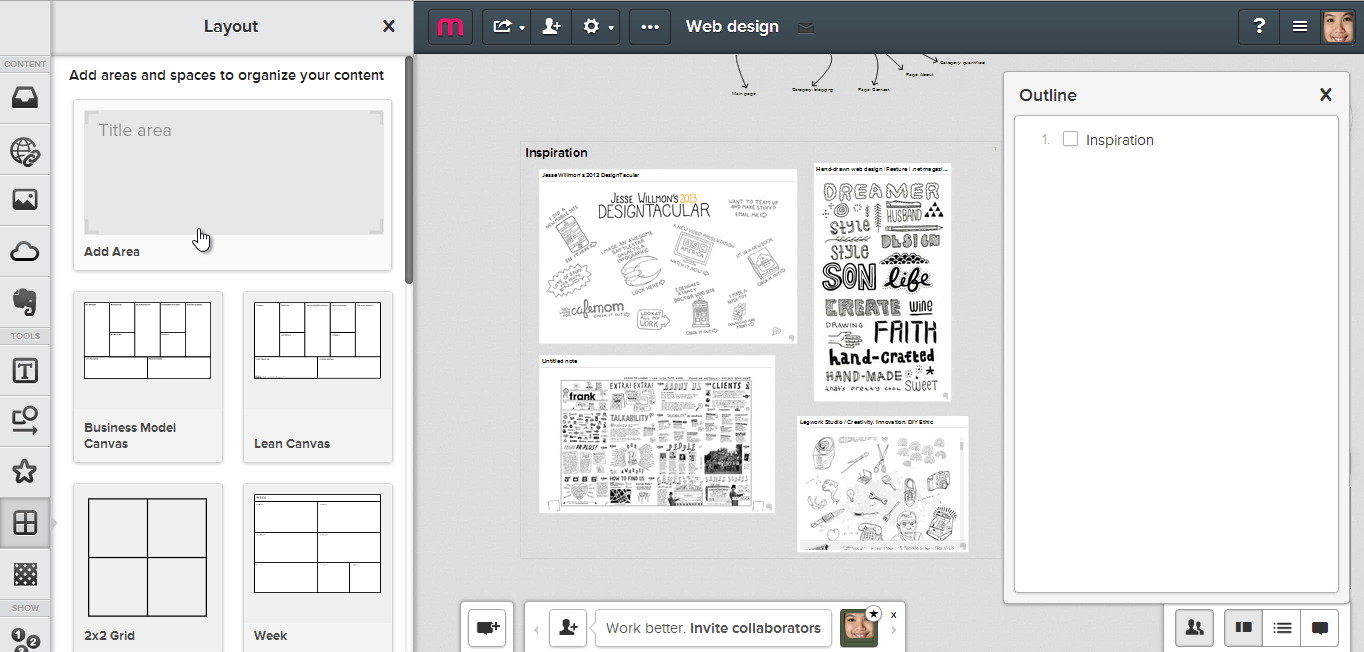
<p>With the Areas and Outlines feature, it&#8217;s even easier to keep things organized. To define an area, click on the Spaces icon and fill in the name.</p>
<p><a href="https://sachachua.com/blog/wp-content/uploads/2013/07/Untitled-Time-0_01_0329.png"><img loading="lazy" style="background-image: none; padding-top: 0px; padding-left: 0px; display: inline; padding-right: 0px; border-width: 0px;" title="Untitled (Time 0_01_03;29)" alt="Untitled (Time 0_01_03;29)" src="https://sachachua.com/blog/wp-content/uploads/2013/07/Untitled-Time-0_01_0329_thumb.png" width="640" height="306" border="0"></a></p>
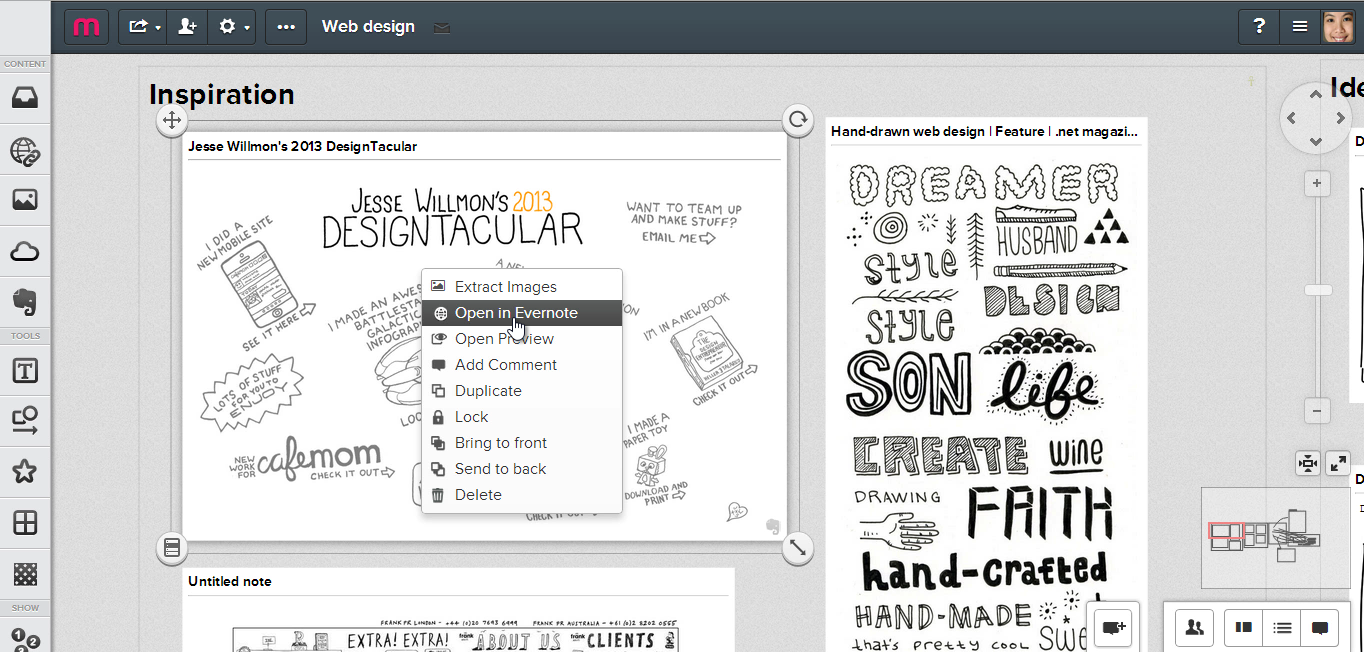
<p>If I want to get back to the original site that I clipped, I can right-click on the item and open the note in Evernote, then follow the source URL.</p>
<p><a href="https://sachachua.com/blog/wp-content/uploads/2013/07/Untitled-Time-0_01_1100.png"><img loading="lazy" style="background-image: none; padding-top: 0px; padding-left: 0px; display: inline; padding-right: 0px; border-width: 0px;" title="Untitled (Time 0_01_11;00)" alt="Untitled (Time 0_01_11;00)" src="https://sachachua.com/blog/wp-content/uploads/2013/07/Untitled-Time-0_01_1100_thumb.png" width="640" height="306" border="0"></a></p>
<p>I drew some ideas for my landing page design on my tablet. Let me add them here as well.</p>
<p><a href="https://sachachua.com/blog/wp-content/uploads/2013/07/Untitled-Time-0_01_1711.png"><img loading="lazy" style="background-image: none; padding-top: 0px; padding-left: 0px; display: inline; padding-right: 0px; border-width: 0px;" title="Untitled (Time 0_01_17;11)" alt="Untitled (Time 0_01_17;11)" src="https://sachachua.com/blog/wp-content/uploads/2013/07/Untitled-Time-0_01_1711_thumb.png" width="640" height="306" border="0"></a></p>
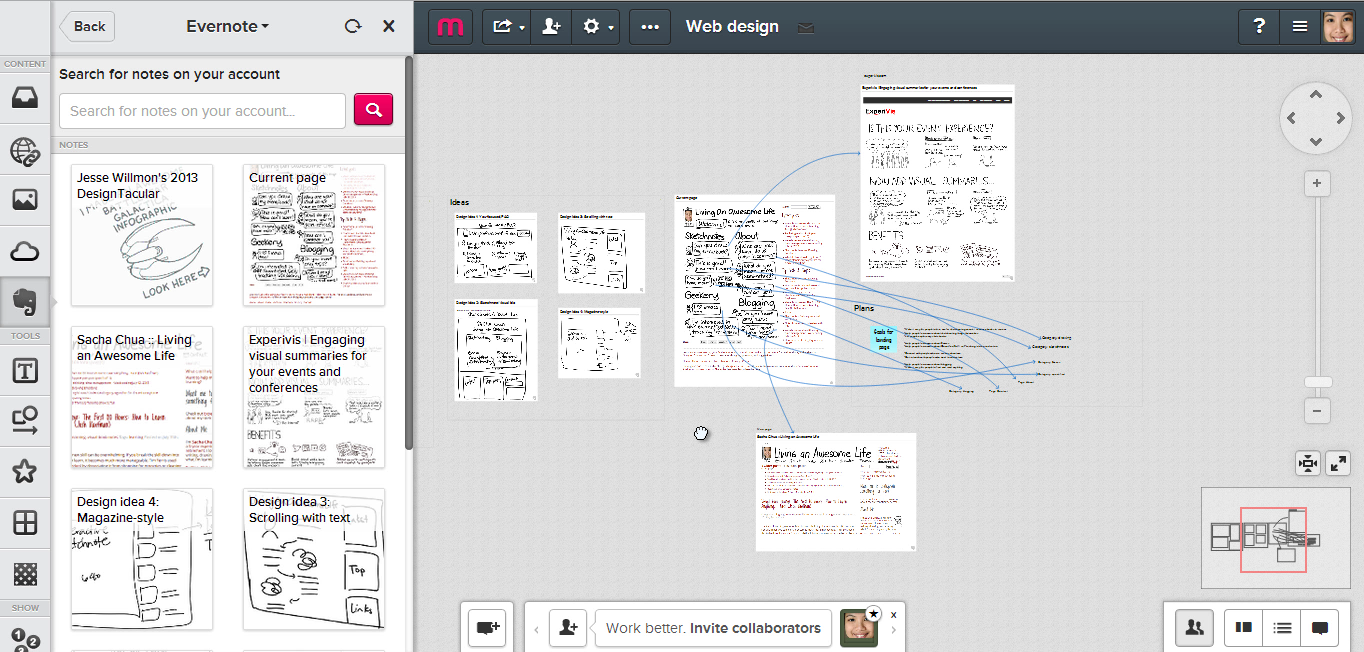
<p>So then I drew the landing page design and implemented it on my site. Here&#8217;s a screenshot that I saved to Evernote&#8230; and now I can update the arrows to show what connects to where, doublechecking that I&#8217;ve covered everything.</p>
<p><a href="https://sachachua.com/blog/wp-content/uploads/2013/07/Untitled-Time-0_01_3219.png"><img loading="lazy" style="background-image: none; padding-top: 0px; padding-left: 0px; display: inline; padding-right: 0px; border-width: 0px;" title="Untitled (Time 0_01_32;19)" alt="Untitled (Time 0_01_32;19)" src="https://sachachua.com/blog/wp-content/uploads/2013/07/Untitled-Time-0_01_3219_thumb.png" width="640" height="306" border="0"></a></p>
<p>Now that Mural.ly makes it super-easy to grab my Evernote clippings, I can imagine using Mural.ly for sketching out user interface flows, data visualizations, and all sorts of other stuff. I hope you have fun with it too!</p>
<p>Other things you might be interested in:</p>
<ul>
<li><a href="http://mural.ly">Mural.ly</a> (<a href="http://blog.mural.ly/">blog</a>), <a href="http://evernote.com">Evernote</a></li>
<li><a href="https://sachachua.com/blog/evernote">How to use Evernote to improve your visual thinking</a></li>
<li><a href="https://sachachua.com/blog/2013/05/how-to-make-a-hand-drawn-highlighted-web-page-header/">How to make a hand-drawn highlighted web page header</a></li>
<li><a href="http://livinganawesomelife.com/">The LivingAnAwesomeLife.com welcome page</a></li>
</ul>
<p>For your convenience, this post is also available at <a href="http://sach.ac/murally">sach.ac/murally</a> . Enjoy!</p>
<p>You can <a href="https://sachachua.com/blog/2013/07/mural-ly-and-evernote-redesigning-my-landing-page/#comment">view 1 comment</a> or <a href="mailto:sacha@sachachua.com?subject=Comment%20on%20https%3A%2F%2Fsachachua.com%2Fblog%2F2013%2F07%2Fmural-ly-and-evernote-redesigning-my-landing-page%2F&body=Name%20you%20want%20to%20be%20credited%20by%20(if%20any)%3A%20%0AMessage%3A%20%0ACan%20I%20share%20your%20comment%20so%20other%20people%20can%20learn%20from%20it%3F%20Yes%2FNo%0A">e-mail me at sacha@sachachua.com</a>.</p>]]></content>
		</entry><entry>
		<title type="html">Mohiomap: A visual way to browse your Evernote notebook</title>
		<link rel="alternate" type="text/html" href="https://sachachua.com/blog/2013/06/mohiomap-a-visual-way-to-browse-your-evernote-notebook/"/>
		<author><name><![CDATA[Sacha Chua]]></name></author>
		<updated>2013-06-24T20:57:12Z</updated>
    <published>2013-06-25T12:00:00Z</published>
    <category term="geek" />
		<id>https://sachachua.com/blog/?p=25039</id>
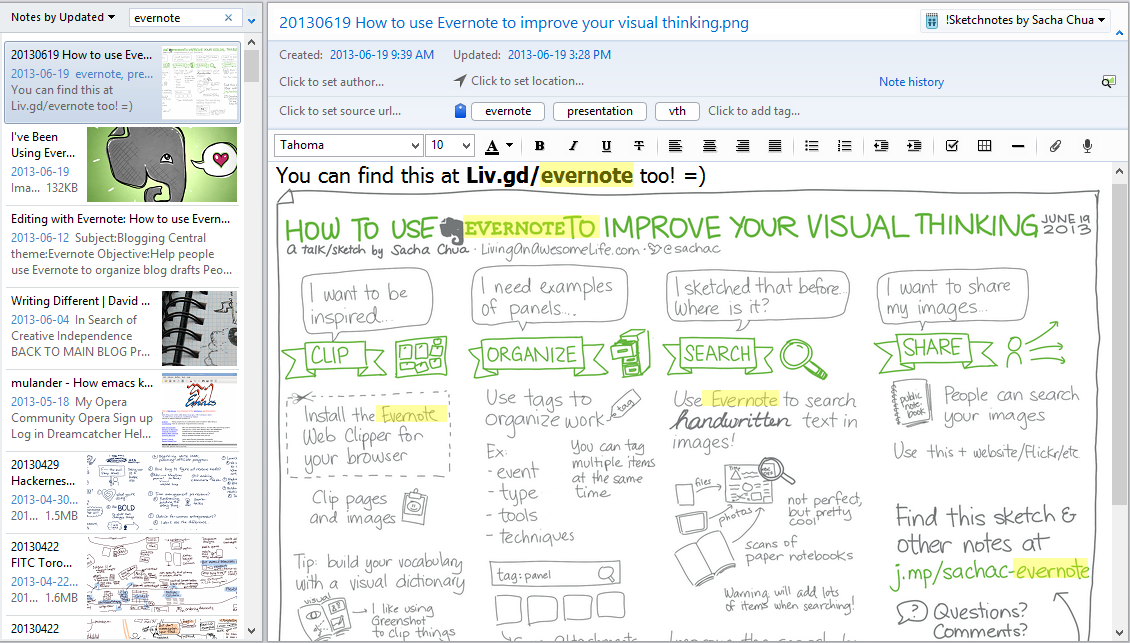
		<content type="html"><![CDATA[<p>Evernote is a great tool for taking notes, but sometimes searching and browsing those notes can get unwieldy if you have thousands of items. For example, searching my notebooks for “evernote” gets me &gt;130 results, which look a little like this in Evernote’s desktop application:</p>
<p><a href="https://sachachua.com/blog/wp-content/uploads/2013/06/image2.png"><img loading="lazy" style="background-image: none; padding-top: 0px; padding-left: 0px; margin: 0px; display: inline; padding-right: 0px; border: 0px;" title="image" alt="image" src="https://sachachua.com/blog/wp-content/uploads/2013/06/image_thumb3.png" width="640" height="364" border="0"></a></p>
<p>This is great if I can narrow things down with notebooks, keywords, and tags, but wouldn’t it be nice to be able to explore better?</p>
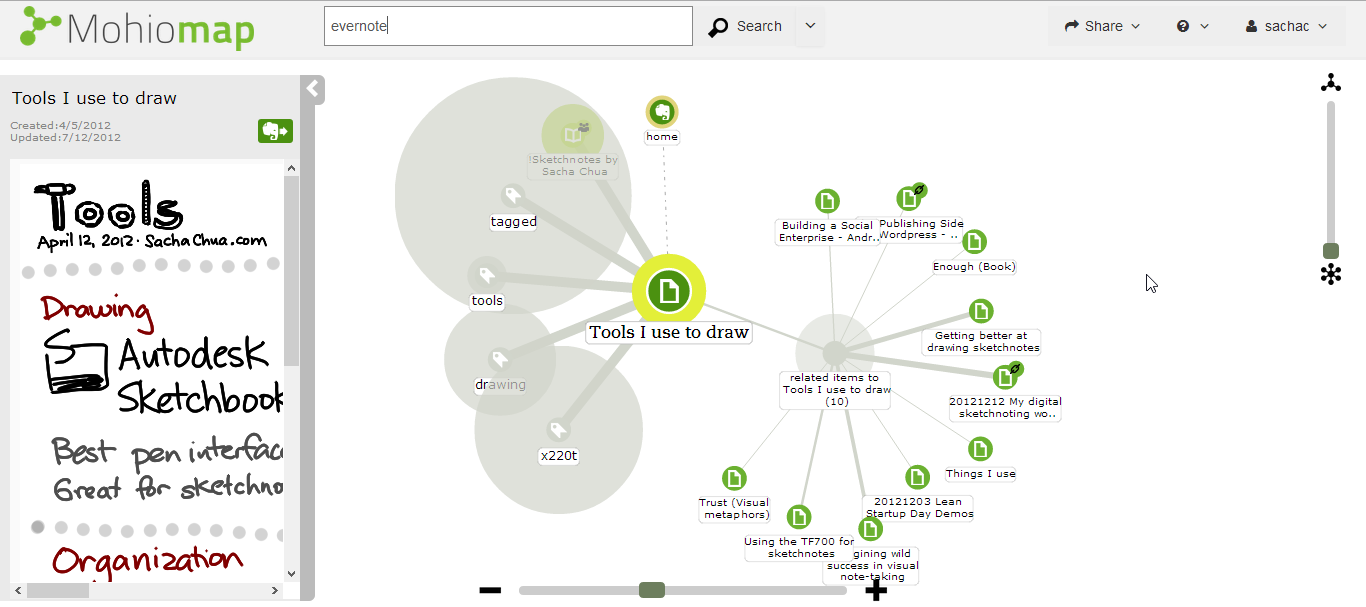
<p>Christian Hirsch (who has been working on quite a few visual interfaces to <a href="http://www.cs.auckland.ac.nz/~chir008/">wikis and knowledgebases</a>) reached out to me about <a href="http://moh.io">Mohiomap</a>, which links up with your Evernote notebook and lets you see it as an interactive map.</p>
<p><a href="https://sachachua.com/blog/wp-content/uploads/2013/06/image3.png"><img loading="lazy" style="background-image: none; padding-top: 0px; padding-left: 0px; display: inline; padding-right: 0px; border: 0px;" title="image" alt="image" src="https://sachachua.com/blog/wp-content/uploads/2013/06/image_thumb4.png" width="640" height="281" border="0"></a></p>
<p>You can click on notes to navigate further and to see a preview in the left sidebar.</p>
<p><a href="https://sachachua.com/blog/wp-content/uploads/2013/06/image4.png"><img loading="lazy" style="background-image: none; padding-top: 0px; padding-left: 0px; margin: 0px; display: inline; padding-right: 0px; border: 0px;" title="image" alt="image" src="https://sachachua.com/blog/wp-content/uploads/2013/06/image_thumb5.png" width="640" height="284" border="0"></a></p>
<p>You can expand items without closing the previous ones, so it’s a handy tool for exploration. I like the way that they indicate number of other entries with both a thicker line as well as a larger circle – the thicker lines are easier to follow when you’re starting from a node.</p>
<p>The trick with new tools is to figure out how you want to fit them into your workflow. Right now, Mohiomap is a visualization and search tool. What new questions can I ask with this interface? How can I use it to learn more?</p>
<ul>
<li><strong>Use Mohiomap to find related notes</strong>: I like the way it displays links to related notes. The notes are determined using the Evernote API, which seems to take the note source and tags into account. Related notes are difficult to find using the desktop application, so this might be a good way to explore when I’m writing blog posts.</li>
<li><strong>Use Mohiomap when searching for something that will have hits in multiple notebooks, if I want to group by notebook: </strong>Mohio’s search interface organizes the first layer of results by notebook. If I used notebooks more, then this might be a good way to browse through my search results. I tend to use tags, though. Oh well!</li>
<li><strong>Use Mohiomap to encourage myself to tag more, and to fix my tags. </strong>Mohiomap shows tags that are connected with each other, so that might be a way to identify overlapping tags. This is slighly less useful with a small result set (30 notes don’t have much overlap), but maybe it will become more useful later. It also lets you draw lines from notes to tags in order to add a tag to a note, and maybe this will evolve into more tagging features.</li>
</ul>
<p>It looks like the first use (browsing through related notes) might be the most relevant for me. Let’s see how well Evernote’s recommendation algorithm works!</p>
<p>Other thoughts: Plus points for making the back button work and keeping graphs individually bookmarkable. =) I’d love to be able to add more search results, like viewing 50 or 100 at a time – or viewing a graph of the tags in my entire Evernote knowledgebase, which would be nifty. Dynamic force-directed networks can be disconcerting because of the motion. It might be great to have different views of it in addition to the current interface – maybe something more constrained like the way <a href="http://freemind.sourceforge.net">FreeMind</a> or <a href="http://www.thebrain.com/">thebrain.com</a> work?</p>
<p><a href="https://mohiomap.uservoice.com/forums/193272-general">UserVoice appears to be the place for suggestions related to Mohiomap.</a> Looking forward to seeing this grow, and any other apps that visualize your data!</p>
<p>You can <a href="https://sachachua.com/blog/2013/06/mohiomap-a-visual-way-to-browse-your-evernote-notebook/#comment">view 1 comment</a> or <a href="mailto:sacha@sachachua.com?subject=Comment%20on%20https%3A%2F%2Fsachachua.com%2Fblog%2F2013%2F06%2Fmohiomap-a-visual-way-to-browse-your-evernote-notebook%2F&body=Name%20you%20want%20to%20be%20credited%20by%20(if%20any)%3A%20%0AMessage%3A%20%0ACan%20I%20share%20your%20comment%20so%20other%20people%20can%20learn%20from%20it%3F%20Yes%2FNo%0A">e-mail me at sacha@sachachua.com</a>.</p>]]></content>
		</entry><entry>
		<title type="html">Here&rsquo;s the recording from &ldquo;How to use Evernote to improve your visual thinking&rdquo;</title>
		<link rel="alternate" type="text/html" href="https://sachachua.com/blog/2013/06/heres-the-recording-from-how-to-use-evernote-to-improve-your-visual-thinking/"/>
		<author><name><![CDATA[Sacha Chua]]></name></author>
		<updated>2013-06-20T01:48:30Z</updated>
    <published>2013-06-19T21:48:30Z</published>
    <category term="process" />
<category term="visual" />
		<id>https://sachachua.com/blog/?p=25017</id>
		<content type="html"><![CDATA[<p><iframe loading="lazy" height="480" src="http://www.youtube.com/embed/UTIwLWtnyB0?rel=0" frameborder="0" width="640" allowfullscreen="allowfullscreen"></iframe></p>
<p>Check out my <a href="https://sachachua.com/evernote">Evernote resource page</a> for the one-page summary and Q&amp;A. Enjoy!</p>
<p>You can <a href="https://sachachua.com/blog/2013/06/heres-the-recording-from-how-to-use-evernote-to-improve-your-visual-thinking/#comment">view 5 comments</a> or <a href="mailto:sacha@sachachua.com?subject=Comment%20on%20https%3A%2F%2Fsachachua.com%2Fblog%2F2013%2F06%2Fheres-the-recording-from-how-to-use-evernote-to-improve-your-visual-thinking%2F&body=Name%20you%20want%20to%20be%20credited%20by%20(if%20any)%3A%20%0AMessage%3A%20%0ACan%20I%20share%20your%20comment%20so%20other%20people%20can%20learn%20from%20it%3F%20Yes%2FNo%0A">e-mail me at sacha@sachachua.com</a>.</p>]]></content>
		</entry><entry>
		<title type="html">How I use Evernote to support my sketchnoting practice</title>
		<link rel="alternate" type="text/html" href="https://sachachua.com/blog/2013/04/how-i-use-evernote-to-support-my-sketchnoting-practice/"/>
		<author><name><![CDATA[Sacha Chua]]></name></author>
		<updated>2013-04-26T17:05:50Z</updated>
    <published>2013-04-25T12:00:00Z</published>
    <category term="process" />
		<id>https://sachachua.com/blog/?p=24723</id>
		<content type="html"><![CDATA[<p>I’ve drawn many sketchnotes, which are real-time visual summaries of presentations or other sources of information. I often need to find a particular sketchnote or set of sketchnotes. For example, if someone’s curious about a book, I like being able to send them my sketchnote of it. If I’m convincing a conference to hire me for sketchnotes, it helps to pull up sketchnotes on similar topics. I also like browsing through sketchnotes and illustrations (both mine and other people’s) for inspiration.</p>
<p><strong>Organizing my sketches</strong></p>
<p>After drawing my sketchnotes using Autodesk Sketchbook Pro and saving them as PNGs, I use a right-click shortcut to send them to Evernote. This adds them to the <strong>!Inbox </strong>notebook that I set up. Then I move them to the <strong>!Sketchnotes by Sacha Chua</strong> notebook, which I share publicly at <a href="http://www.evernote.com/pub/sachac/sketchnotes">http://www.evernote.com/pub/sachac/sketchnotes</a> . The ! at the beginning of the notebook names makes sure that they get sorted near the top of my list of notebooks. </p>
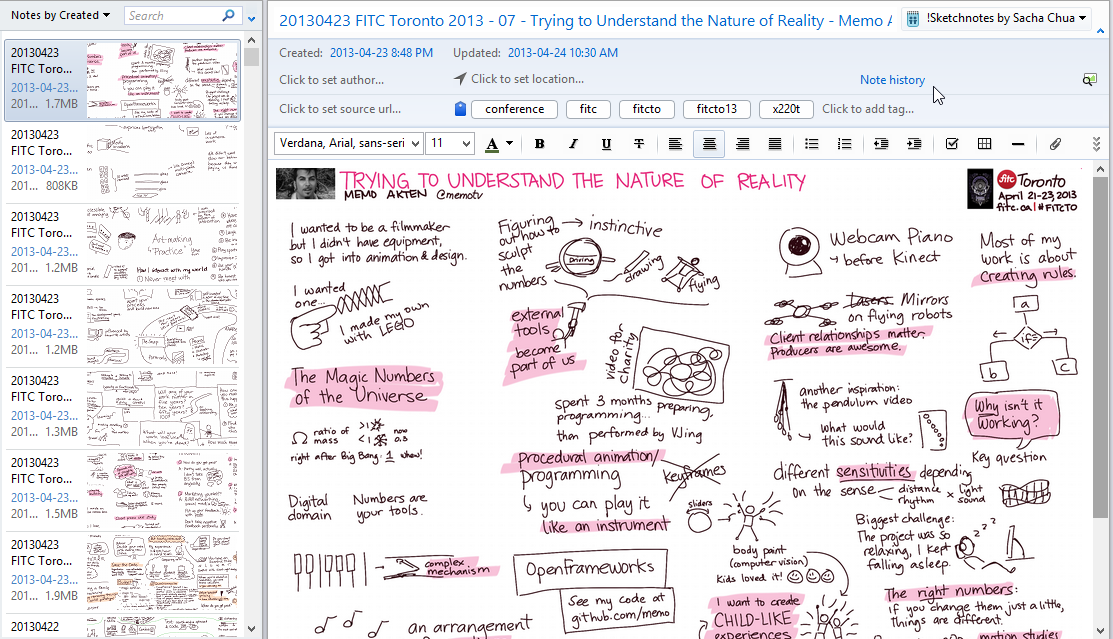
<p>This is what a sketchnote looks like in my Evernote notebook:</p>
<p><a href="https://sachachua.com/blog/wp-content/uploads/2013/04/image.png"><img loading="lazy" title="image" style="border-top: 0px; border-right: 0px; background-image: none; border-bottom: 0px; padding-top: 0px; padding-left: 0px; border-left: 0px; display: inline; padding-right: 0px" border="0" alt="image" src="https://sachachua.com/blog/wp-content/uploads/2013/04/image_thumb.png" width="580" height="333"></a></p>
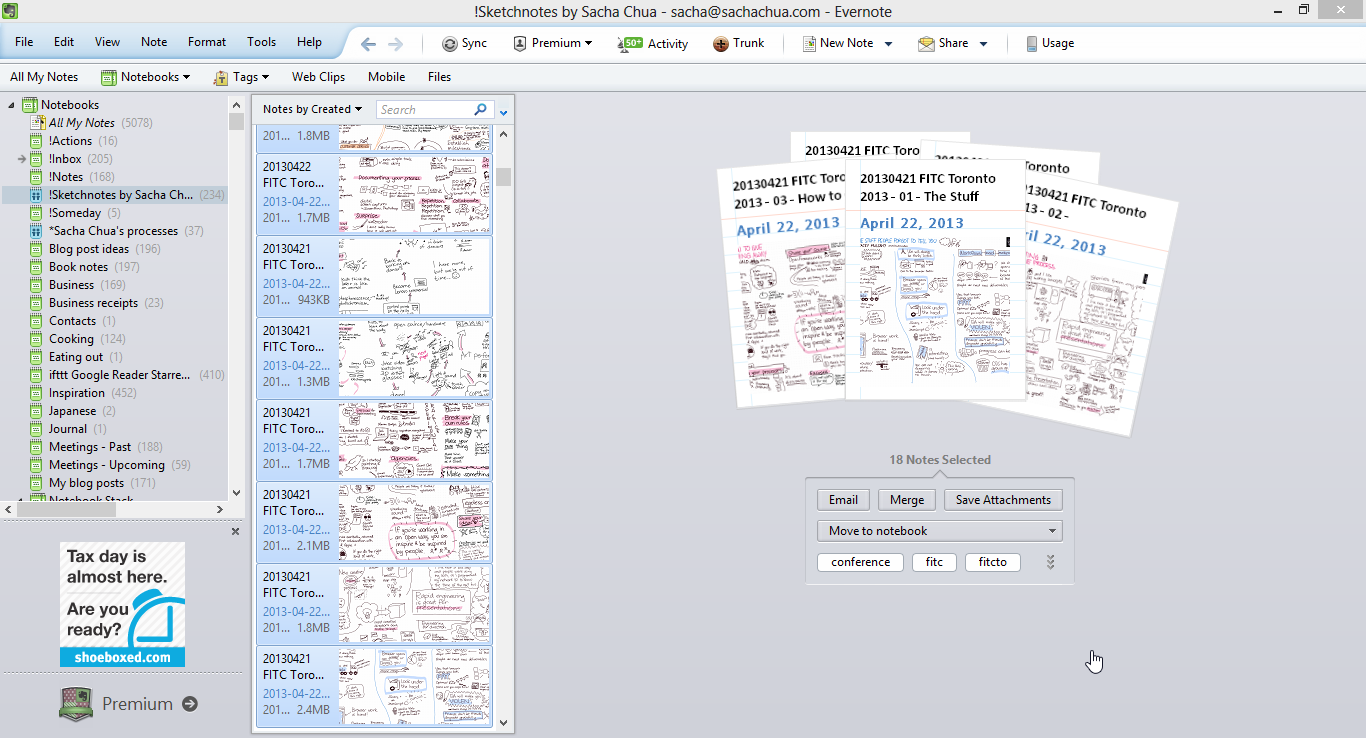
<p>I tag my sketchnotes with various keywords to help me find things again. For example, I tagged my recent FITC sketchnotes with <strong>fitc, fitcto, conference, fitcto13, </strong>and <strong>design</strong>. I sketchnoted a panel, so I tagged that one with <strong>panel</strong> too. I like keeping track of the tool I used to create sketchnotes (I sometimes need to search to find examples), so I tagged these with <strong>x220t </strong>as well. Selecting multiple notes makes it easy to add or remove tags.</p>
<p><a href="https://sachachua.com/blog/wp-content/uploads/2013/04/image1.png"><img loading="lazy" title="image" style="border-top: 0px; border-right: 0px; background-image: none; border-bottom: 0px; padding-top: 0px; padding-left: 0px; border-left: 0px; display: inline; padding-right: 0px" border="0" alt="image" src="https://sachachua.com/blog/wp-content/uploads/2013/04/image_thumb1.png" width="580" height="313"></a></p>
<p>Then I can use tag:____ searches to find collections of sketchnotes, and I can right-click on the set and export the attachments to a directory if needed.</p>
<p><strong>Searching</strong></p>
<p>Because most of my sketchnotes are published on the Web (either on <a href="http://experivis.com">http://experivis.com</a> or at <a href="https://sachachua.com/blog/category/sketchnotes">https://sachachua.com/blog/category/sketchnotes</a>), I usually use Google to find my sketches if I remember keywords from the title. This has the benefit of being immediately shareable with people, too. For example, I might search for <strong>sacha chua sketchnote handbook </strong>to find my visual book review of Mike Rohde’s sketchnoting primer.</p>
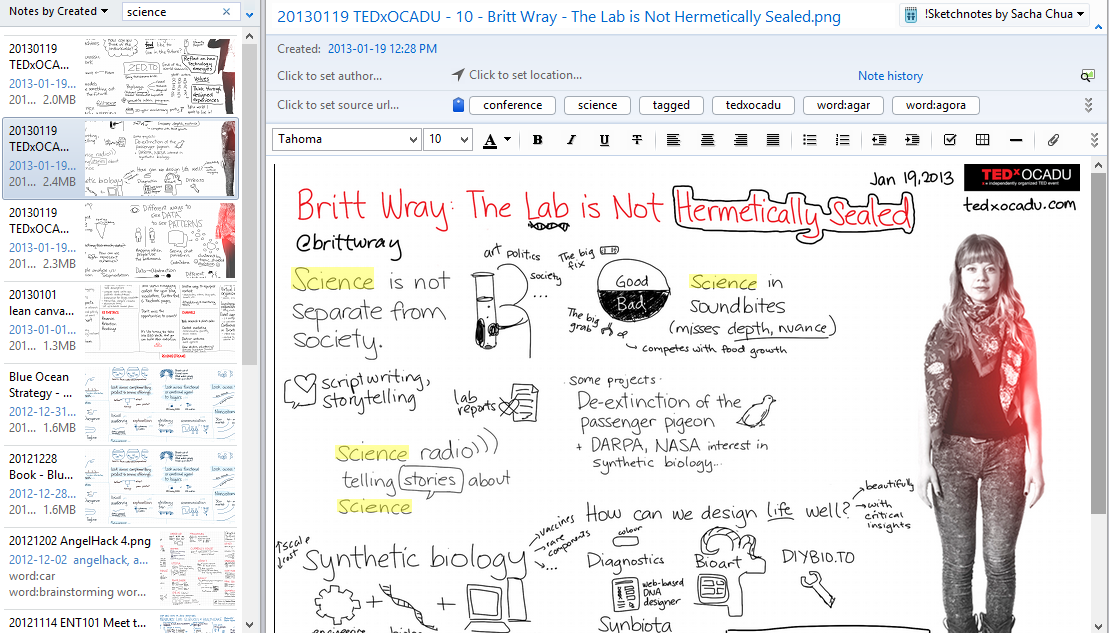
<p>If I need to look for something within the body of the sketchnote or if I’m searching while not connected to the Internet, that’s when I take advantage of <strong>Evernote’s offline synchronization and image search</strong>. Evernote has some nifty optical character recognition that lets you find text (even handwritten text!) inside images. It’s not perfect, but it’s pretty darn good. I’ve shifted from writing script to printing my letters in order to make it more legible, and that helps the search as well.</p>
<p>This is how awesome it is. I can search for <strong>“science” </strong>and it will highlight the hand-written text <strong>inside</strong> my image. Again, it doesn’t always match up, but it’s pretty awesome!</p>
<p><a href="https://sachachua.com/blog/wp-content/uploads/2013/04/image2.png"><img loading="lazy" title="image" style="border-top: 0px; border-right: 0px; background-image: none; border-bottom: 0px; padding-top: 0px; padding-left: 0px; border-left: 0px; display: inline; padding-right: 0px" border="0" alt="image" src="https://sachachua.com/blog/wp-content/uploads/2013/04/image_thumb2.png" width="580" height="331"></a></p>
<p><strong>Building my visual vocabulary</strong></p>
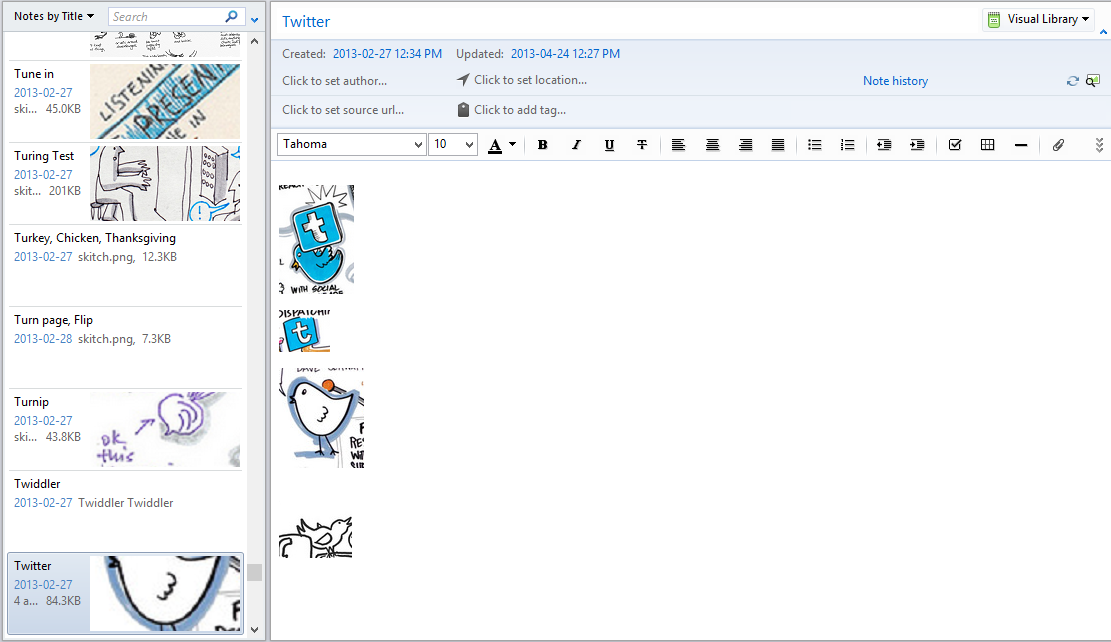
<p>I want to get better at drawing concepts in different ways. I started building a visual dictionary by drawing concepts on index cards, but it was difficult to flip through and handling concepts with different keywords was challenging. Evernote makes a great platform for building your own visual dictionary. I use Greenshot to capture sketches and snippets from the images I’ve drawn or the ones I’ve come across on the Web. I configured Greenshot to save all the images to a directory. I periodically import all those images into Evernote and rename the notes based on the keywords I think I’ll use to find them again. I merge similar items, too. </p>
<p>I browse through this visual library occasionally, and I also use it to look up specific concepts that I want to challenge myself to draw more creatively. I like looking at different ways people have drawn things. Here’s an example for <strong>“Twitter:”</strong></p>
<p><a href="https://sachachua.com/blog/wp-content/uploads/2013/04/image3.png"><img loading="lazy" title="image" style="border-top: 0px; border-right: 0px; background-image: none; border-bottom: 0px; padding-top: 0px; padding-left: 0px; border-left: 0px; display: inline; padding-right: 0px" border="0" alt="image" src="https://sachachua.com/blog/wp-content/uploads/2013/04/image_thumb3.png" width="580" height="335"></a></p>
<p><strong>Getting inspired</strong></p>
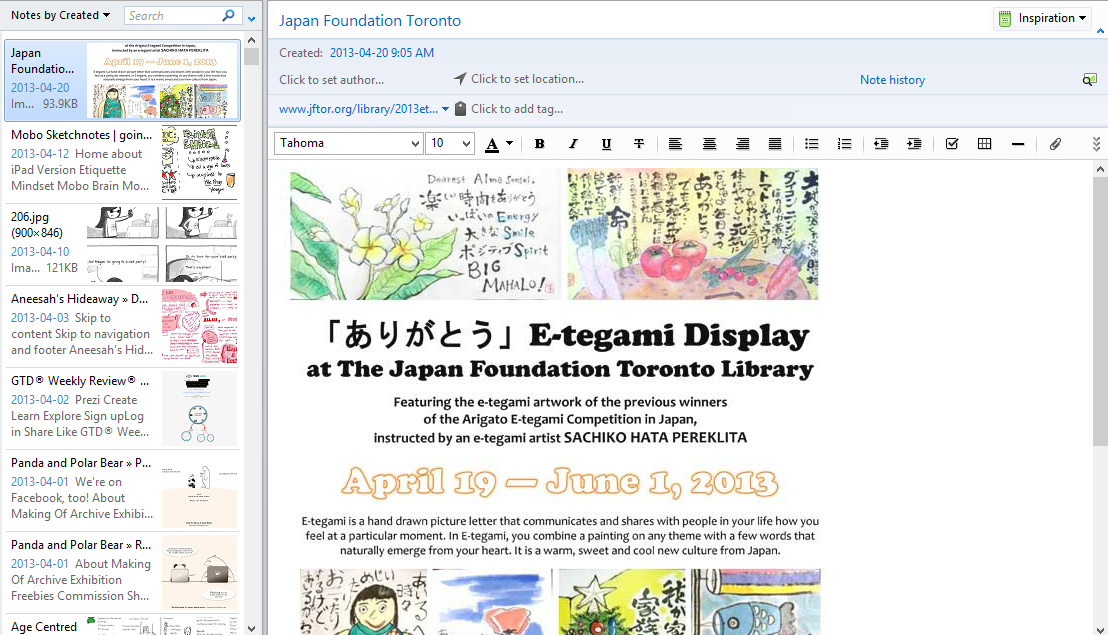
<p>I clip other people’s sketchnotes and illustrations into another notebook for inspiration so that I can learn more about layouts, colour schemes, and great ideas for visual expression. Here’s a sample from my Inspiration notebook:</p>
<p><a href="https://sachachua.com/blog/wp-content/uploads/2013/04/image4.png"><img loading="lazy" title="image" style="border-top: 0px; border-right: 0px; background-image: none; border-bottom: 0px; padding-top: 0px; padding-left: 0px; border-left: 0px; display: inline; padding-right: 0px" border="0" alt="image" src="https://sachachua.com/blog/wp-content/uploads/2013/04/image_thumb4.png" width="620" height="355"></a></p>
<p>The Evernote Web Clipper is super-helpful. When I browse the Web, I use it to clip images, pages, or PDFs. The clipper links the note back to the original page, so I can easily go back and view things in context.</p>
<p><strong>How this influences my style</strong></p>
<p>Knowing that my notes are going to be shared and indexed by Evernote influences the way I draw. As mentioned, I tend to print my letters instead of writing in cursive. I also draw roughly horizontal text with good contrast and without too much going on in the background. This makes it less ornate than other sketchnoters’ styles, but people appreciate the clarity, so it works out. It’s a little odd drawing for people <em>and</em> computers, but it’s useful and worth it!</p>
<p><strong>Other thoughts</strong></p>
<p>I started off with a free Evernote account (60MB monthly upload), but I found that the premium version (USD 45/year) worked really well for me in terms of offline synchronization and increased upload size. I’ve approached the 1 GB limit only once. =)</p>
<p>I’d love better ways to randomly browse through my Evernote collection, which would be great for jogging memory. I also want to be able to flip through the notes quickly, like with a 5-minute slideshow. (Similar to rapid serial visual presentation, perhaps?) I may just have to sit down and code these things myself. I’d like to visualize my notes, too, and someday build more integration for Emacs or Freemind/XMind. (Currently waiting for Evernote to support out-of-band authentication.) Filing and tagging could be better with more quick shortcuts, and more keyboard shortcuts in general would be nice, too. Much room to grow!</p>
<p>You can find Evernote at <a href="http://evernote.com">http://evernote.com</a> , and you can use it over the Web, on computers, and on and most smartphones. =) It rocks. Also, if you’re curious about having me do sketchnotes for conferences, presentations, books, blog posts, etc., check out <a href="http://experivis.com">http://experivis.com</a> . Hope these tips help!</p>
<p>You can <a href="https://sachachua.com/blog/2013/04/how-i-use-evernote-to-support-my-sketchnoting-practice/#comment">view 3 comments</a> or <a href="mailto:sacha@sachachua.com?subject=Comment%20on%20https%3A%2F%2Fsachachua.com%2Fblog%2F2013%2F04%2Fhow-i-use-evernote-to-support-my-sketchnoting-practice%2F&body=Name%20you%20want%20to%20be%20credited%20by%20(if%20any)%3A%20%0AMessage%3A%20%0ACan%20I%20share%20your%20comment%20so%20other%20people%20can%20learn%20from%20it%3F%20Yes%2FNo%0A">e-mail me at sacha@sachachua.com</a>.</p>]]></content>
		</entry><entry>
		<title type="html">Building my visual vocabulary: Breaking down other people&rsquo;s sketchnotes into component parts</title>
		<link rel="alternate" type="text/html" href="https://sachachua.com/blog/2013/03/building-my-visual-vocabulary-breaking-down-other-peoples-sketchnotes-into-component-parts/"/>
		<author><name><![CDATA[Sacha Chua]]></name></author>
		<updated>2013-02-28T09:22:08Z</updated>
    <published>2013-03-01T13:00:00Z</published>
    <category term="drawing" />
		<id>https://sachachua.com/blog/?p=24526</id>
		<content type="html"><![CDATA[<p>I want to draw more expressively. Some easy ways to improve my visual vocabulary are to <strong>look at how other people draw things</strong> and <strong>practise drawing with those styles</strong>. I started by redrawing the images onto index cards, but it was a hassle to keep the index cards sorted. Besides, I wasn’t looking forward to the error-prone process of scanning all the index cards in and making them available on my phone or computer. I didn’t want to fuss about with splitting my screen and trying to draw in a small section, or browsing through pages on my tablet while redrawing things on my tablet PC. I wanted a quick and easy way to build a visual glossary in preparation for drawing things myself.</p>
<p><strong>Skitch </strong>turned out to be a great way to quickly capture small sections from other people’s sketchnotes and add them to Evernote. Ctrl-% captures a screenshot. That requires too much hand gymnastics and popped up a dialog, so I used <strong>AutoHotkey </strong>to map my F5 function key to <kbd>^`%{Space}</kbd>. This meant that I could hit a single key to capture the screenshot and send the previous one to Evernote, so I could keep one hand on the mouse and one hand on the keyboard. It was relaxing work, and so easy that I got a little carried away. I captured some 800 images before I sat down and started classifying them.</p>
<p>I wanted to label each image with a keyword that I could use to find it. Another Autohotkey shortcut mapping F6 to <kbd>!nv{Enter}{Esc}{Tab}^a</kbd> made it much easier to move the note to my Visual Library notebook and select the next note for editing. I settled into the rhythm of typing in keywords and pressing F6, and after a couple of hours, I’d classified all the images I’d captured so far. I spent a little time merging similar concepts for easier review, ending up with 575 entries in my visual library. </p>
<p><strong>Some things I learned along the way:</strong></p>
<ul>
<li><strong>Many sketchnotes have just a handful of images. </strong>Some feel very graphical anyway because of lettering flourishes and creative layouts. My style actually involves more mini-images than many of the ones I’ve seen, but I don’t develop them to the level of detail in some people’s sketchnotes.</li>
<li><strong>A good portrait goes a long way. </strong>I should practise drawing people.</li>
<li><strong>Simple shading has a nice effect. </strong>A light gray tone or a subtle shadow colour can really add depth.</li>
</ul>
<p>There are still plenty of other sketchnotes to harvest drawings from, so I can alternate harvesting images with practising drawing them.</p>
<p>Links: <a href="http://evernote.com/skitch/">Skitch</a>, <a href="http://evernote.com">Evernote</a>, <a href="http://autohotkey.com">Autohotkey</a>, the <a href="http://sketchnoteindex.com">Sketchnote Index</a></p>
<p>You can <a href="https://sachachua.com/blog/2013/03/building-my-visual-vocabulary-breaking-down-other-peoples-sketchnotes-into-component-parts/#comment">view 1 comment</a> or <a href="mailto:sacha@sachachua.com?subject=Comment%20on%20https%3A%2F%2Fsachachua.com%2Fblog%2F2013%2F03%2Fbuilding-my-visual-vocabulary-breaking-down-other-peoples-sketchnotes-into-component-parts%2F&body=Name%20you%20want%20to%20be%20credited%20by%20(if%20any)%3A%20%0AMessage%3A%20%0ACan%20I%20share%20your%20comment%20so%20other%20people%20can%20learn%20from%20it%3F%20Yes%2FNo%0A">e-mail me at sacha@sachachua.com</a>.</p>]]></content>
		</entry>
</feed>