2026-06-15 Emacs news

| emacs, emacs-news

Lots of discussion around Karthik's latest blog post Even More Batteries Included with Emacs (Reddit, HN, lobste.rs). Check it out!

Links from reddit.com/r/emacs, r/orgmode, r/spacemacs, Mastodon #emacs, Bluesky #emacs, Hacker News, lobste.rs, programming.dev, lemmy.world, lemmy.ml, planet.emacslife.com, YouTube, the Emacs NEWS file, Emacs Calendar, and emacs-devel. Thanks to Andrés Ramírez for emacs-devel links. Do you have an Emacs-related link or announcement? Please e-mail me at sacha@sachachua.com. Thank you!

View Org source for this post

La semaine du 1 au 7 juin

| french

lundi le premier juin

Ma fille a séché les cours et elle n'a pas non plus voulu aller à son cours de gymnastique parce qu'elle a eu une mauvaise nuit et elle était toujours grincheuse.

Au lieu de la harceler, j'ai travaillé sur des transcriptions et sur mon bulletin d'information sur Emacs. J'ai écrit des fonctions pour comparer les mots et effacer les étendues qui correspondent avec les mots effacés.

Après avoir lu dans sa chambre pendant longtemps, elle a finalement réapparu de bonne humeur. Elle et moi avons préparé du sushi pour le dîner. Ensuite, nous avons joué au Scrabble dehors.

Elle a porté sa prothèse oculaire toute seule. Elle a dit qu'elle l'a fait pour elle-même. Je pense que l'autonomie est très importante pour ma fille.

Nous avons fait du vélo à la cour de récréation avec son amie, où nous avons rejoint d'autres amies. De temps en temps, ma fille était surstimulée. Quand ça arrivait, elle a joué au Scrabble avec moi et la nourrice de ses amies. Après qu'une de ses amies soit partie, nous sommes allées à l'autre cour de récréation pour jouer encore.

mardi 3

Ma fille a participé à l'école ce matin même s'il y avait un remplaçant, mais elle n'a pas voulu y participer l'après-midi. Nous sommes assises dehors et nous avons travaillé sur ses devoirs. Nous avons vu des pics.

J'ai emmené ma fille au parc pour jouer avec ses amis. Elle a aimé faire du vélo autour du parc avec ses amis et sans adultes. Ils ont aussi fait du vélo autour de la pataugeoire qui était sèche parce qu'elle n'était pas encore ouverte. Ils tournaient en rond.

J'ai fait l'erreur de jouer à mon jeu de Tileman Reworked près de ma fille. Elle a voulu m'aider, bien. Elle a recueilli les citrouilles et les canneberges, bien. Elle a commencé à couper l'herbe près des récoltes, euh… J'ai essayé d'expliquer qu'il ne fallait pas la couper, mais elle est devenue grincheuse parce que je la corrigeais. Elle m'a dit qu'elle voulait seulement m'aider et elle est partie furieuse. Ce n'est pas grave. Je pense que cette ferme est trop compliquée pour elle pour le moment. Notre ferme habituelle est meilleure. J'apprécie qu'elle ait voulu m'aider, et c'était juste un jeu. C'est aussi bien si elle apprend comment coopérer.

J'ai commencé à réécrire la transcription de la conversation entre ma sœur et notre cousine.

jeudi 4

J'ai discuté d'Emacs avec Ben Zanin. Il a partagé sa configuration sur elfeed, la musique, et d'autres sujets.

J'ai travaillé comme consultante. J'ai pris un cours de formation.

Ma fille et moi avons fait du vélo au parc. Nous avons joué à la pataugeoire et au bac à sable. Nous avons improvisé des histoires de Donjons et Dragons avec les dés sur mon smartphone.

J'ai discuté avec mes sœurs et quelques personnes des assurances-vie de ma mère. Notre accès au compte bancaire sera limité si ma sœur décède, donc il vaut mieux que nous fassions la paperasse maintenant.

vendredi 5

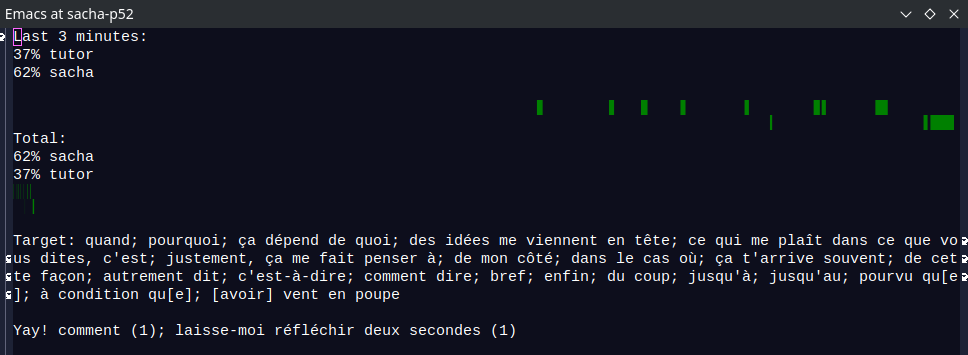
J'ai eu ma première session de la conversation avec mon tuteur aujourd'hui ! À mon grand étonnement, j'ai pu suivre assez de ses mots et j'ai pu expliquer mes pensées ( avec une mauvaise grammaire, bien sûr ). Je sais qu'il fallait que je m'entraîne à penser en français au lieu de traduire de l'anglais, donc davantage parler, davantage apprendre. C'est un exercice intense. J'avais transpiré. Nous avons réussi à parler de la programmation, des études à l'université, le travail, la vie, et d'autres sujets.

J'ai augmenté le stockage pour les vidéos de ma sœur.

J'ai signé la paperasse pour les assurances-vie.

J'ai appelé ma mère et je l'ai informée de la paperasse.

samedi 6

J'ai téléchargé encore d'autres vidéos de ma sœur.

Nous avons joué aux Donjons et Dragons avec ses tantes et ses cousines. Ma fille était la meneuse de jeu pour une partie de la session. Nous avons cherché une petite chèvre perdue, et nous avons combattu quatre bandits déguisés en gardes.

Nous avons fait des mochis.

J'ai payé la pénalité pour la soumission en retard du bilan de vérification du revenu étranger que je n'ai pas pu finir l'année précédente parce que le banquier était peu communicatif. Tant pis. Je pense que si ça arrive encore, je dois le soumettre avec ma meilleure estimation.

Dans mon jeu Tileman Reworked de Stardew Valley, j'ai finalement accédé à la boutique de Willy, le pêcheur. C'était le dernier jour d'automne de la quatrième année.

J'ai travaillé comme consultante. J'ai analysé des mises à jour.

dimanche 7

J'ai emmené ma fille chez le perceur pour examiner ses oreilles. Le perceur nous a dit qu'elle avait l'autorisation de changer pour de nouvelles boucles d'oreilles. Sur le chemin du retour, nous avons fait une promenade dans le parc.

J'ai emmené ma fille au Dufferin Mall pour sélectionner des boucles d'oreilles. Après quelques comparaisons, ma fille a opté pour des clous d'oreilles en acier plaqué or avec des pierres moyennes chez New Steel. C'était bon marché.

J'ai fini de coudre la robe de ma fille. Elle voulait me coudre une robe, donc j'ai préparé des pièces pour elle. Il vaut mieux que j'utilise beaucoup d'épingles et que je trace une ligne à la craie.

View Org source for this post

From DC Toedt: Copy Org Mode as Markdown

Posted: - Modified: | emacs, org

: Add embark way to do things.

DC Toedt is a lawyer and professor of practice who uses Emacs and Org Mode. He wanted a small Emacs Lisp function to convert Org Mode syntax to Markdown and copy it to the clipboard to make it easier to copy the materials he's writing for a course on contract drafting. This seems to be a common need, and here are several other approaches:

Anyway, DC shared how he used Claude to generate a simple function to do it, which is here under public domain:

(defun my/org-to-markdown-clipboard ()
  "Export org region (or buffer) to Markdown and copy to clipboard.
With no active region, exports the whole buffer."
  (interactive)
  (require 'ox-md)
  (let* ((text (if (use-region-p)
                   (buffer-substring-no-properties (region-beginning)
(region-end))
                 (buffer-substring-no-properties (point-min) (point-max))))
         (md (org-export-string-as text 'md t '(:with-toc nil
                                                :with-author nil
                                                :with-date nil
                                                :with-title nil))))
    (kill-new md)
    (message "Markdown copied (%d chars)" (length md))))
(with-eval-after-load 'org
  (define-key org-mode-map (kbd "C-c m") #'my/org-to-markdown-clipboard))
View Org source for this post

Yay Emacs 33: Sacha and Prot Talk Emacs: Built-ins

Posted: - Modified: | emacs, yay-emacs

: Updated transcript

I chatted with Prot about the Emacs Carnival June 2026 topic Underappreciated Emacs Built-ins. Thanks to Ross A. Baker for hosting the carnival!

View in the Internet Archive, watch or comment on YouTube, read the transcript online, download the transcript, or e-mail me.

Related links:

Chapters

  • 0:00 Starting up
  • 2:27 Focus and distraction
  • 3:54 Org Mode and other note-taking, task-management systems
  • 4:58 Kill ring
  • 6:50 Registers
  • 9:58 Narrowing
  • 12:04 org-narrow-to-subtree
  • 12:13 narrow-to-defun
  • 13:19 Indirect buffers
  • 14:50 Undoing within a region
  • 15:53 Bookmarks
  • 17:41 isearch
  • 18:21 Tip: Add a counter to isearch
  • 19:26 C-x C-x (exchange-point-and-mark)
  • 20:55 Popping to marks - going back to where you were
  • 21:49 Selecting what you just pasted
  • 22:33 Indenting pasted or selected text with indent-rigidly
  • 23:24 Popping to mark after xref or imenu
  • 24:05 Adding other packages like consult
  • 24:44 Tip about indicating isearch wrapping
  • 25:26 Navigating by sentence or s-expression
  • 27:45 Navigating to other errors
  • 28:29 Tags
  • 28:47 Imenu
  • 30:19 Projects
  • 32:10 Putting projects in tabs or frames
  • 32:35 Tabs
  • 34:41 Navigating frames
  • 36:07 These navigation shortcuts work for prose, too
  • 37:09 follow-mode
  • 37:50 Ediff
  • 42:12 Calling functions by name
  • 42:52 Completion
  • 44:13 Manuals
  • 45:57 Menus
  • 47:46 Automation - abbreviations
  • 49:56 Quoting the next character with C-q
  • 50:31 Mapping abbreviations to code
  • 51:51 Taking notes with org-capture
  • 52:08 Navigating back to captures or refiles
  • 53:49 dabbrev
  • 54:44 Keyboard macros
  • 57:52 Editable grep and occur
  • 1:01:01 Emacs Carnival June 2026: Underappreciated built-ins

Transcript

Expand this to read the transcript

0:00 Starting up

Sacha: There's a 10-second delay, so I can never quite tell when I'm starting to start, but I think I'm going to do that now. Okay, let's go. Okay, I have pressed the Go Live button. Let's see how it goes. So this is Yay Emacs 33 with Prot: Sacha and Prot Talk Emacs. Today, we're going to be talking about underappreciated Emacs built-ins, which is the theme for this month's Emacs carnival.

Sacha: Kind of like this, you know, shared, lots of people writing or talking about a specific topic. This one is hosted by Ross A. Baker. (Thanks for hosting that!) Anyway, so I'm here with Prot. I was very tempted to just dive into this brain dump like last time about... Let's start with the kinds of problems that newcomers and intermediate users might run into, especially the problems they don't even know about because Emacs would allow them to do things that other editors might not offer. But they've got to think about it first, right? They've got to discover that this is a need of theirs and that Emacs can help them with it. So maybe this conversation can be a high-level discussion of these concepts to help people develop this intuition for what's out there, particularly for the things that Emacs does differently compared to other editors. And if we start with a problem, and I have several that I often run into in my own life, you might suggest others as well. Then we can talk about how the things that are built into Emacs can support that and how they fit together at a high level. We don't have to go into "This is precisely how to start a keyboard macro and how to stop it." People can look that up in the manual. But the idea of a keyboard macro and how it's useful, that would probably be a good thing for a conversation. Then for the advanced users who are listening to this, we can sprinkle in some things we've seen about some really advanced uses of these built-ins, because there's a lot of high-level use that I haven't even got into yet. So Prot is here, which means that because you've got two people, you can see how these same tools can be used in different ways to support different workflows. I'm going to suggest some problems that I have. Of course, you can share some from your experience and from the times that you've coached other people.

2:27 Focus and distraction

Sacha: My main problem with life in general. is focus and distraction. Because I have a kid, my focus time is very unpredictable. It can be interrupted any moment by somebody needing help. My life over the last 10 years has mostly been about five minutes here, 10 minutes there, maybe 15, one hour of focus time if I'm lucky. This is a universal challenge. Well, some people actually get to focus, but my brain is not one of those focusable things. It has to work in stops and starts. Any chance this is a problem that you also run into?

Prot: Not to that extent, but I have the propensity to go down rabbit holes. I will go really deep, like really deep. You give me something which I know nothing about, I will become an expert in it. But of course, this is a problem when you combine it with curiosity, because now you want to learn everything. Thankfully, I have learned to control myself. If you give me something I don't know about, I will say, OK, sounds very tempting, but I will not even try. I won't even go down the rabbit hole.

Sacha: So these are two sides of the same problem, and something that a lot of people will resonate with... When you're working on something and you realize, okay, I've got to go do this other thing first or, oh, I'm curious about this question that has come up in my brain. I want to go down that rabbit hole. How do we manage this? Emacs is here to help.

3:54 Org Mode and other note-taking, task-management systems

Sacha: My first recommendation for this problem is: take advantage of Org Mode or other built-in note-taking task management support systems because it... Sometimes people think, okay, an IDE is just an IDE, right? If they're programmers, it's just for code. Sometimes people are writing. They're using a text editor just for writing their novel. But because Emacs has these built-in ways to support managing your to-dos and all that stuff, it's very easy just to stuff that task in there. Have a quick shortcut to go to your to-do list and put something in. Then it gets out of your brain so that you can try to focus on the thing that you're trying to get done. That's my quick underappreciated... actually, a lot of people really appreciate this, but it's one of those things people coming to Emacs from other editors might not immediately catch on to.

Prot: You might not understand the extent of how valuable it is. It's the gift that keeps giving, basically.

Sacha: Yeah, yeah. When your to-dos and your notes are just a couple of keystrokes away, and they can save the context of whatever you were looking at.

4:58 Kill ring

Sacha: There are all sorts of other small conveniences that Emacs has that also help with distraction and focus. For example, the kill ring. It's such a simple thing, right?

Prot: It's super simple, but super useful. Just to say on the kill ring, it has been part of Emacs for several versions now, but it's not obvious. If you type M-y without C-y beforehand, you get completion. So you can select something that you had in your kill-ring like a few kills ago. Clipboard navigation, which is something that you don't see right away.

Sacha: If people are coming from outside Emacs and they're like, "What is this thing that you're talking about?" People are used to having a clipboard, right? As soon as you copy something, your program forgets the thing that you previously copied. On mobile phones now, if you press paste, you can see a selection of the previous things you've copied before. It's like that, but larger.

Sacha: Prot points out: you can use completion with it. So M-y is yank-pop I think? What I find useful about this is sometimes I'll copy something because I want to go paste it somewhere else, and then on the way to that somewhere else, I get distracted by something, and I need to copy that, but I know that the kill-ring will have the other copies that I meant to put somewhere else.

Prot: By completion here, we mean you can type and match that thing, narrow down to it.

Prot: You don't have to go searching for it and, "Okay, which one exactly is it," right?

Prot: You can find it more easily.

6:50 Registers

Sacha: Registers. It's the other thing that I like to use when I know that I'm copying several things and I need to paste them, possibly in different order.

Sacha: Again, that's another thing that people are like, "What is this thing, even?" Do you find yourself explaining registers to people who are new to Emacs?

Prot: Yes. Registers is something that is underutilized, because of course, why would you need them when you can have a kill-ring with a history, right? Why do I need to store things in a register when I can just have them one after the other in the kill-ring. The answer is because if you do something more advanced, such as with a keyboard macro, it will always be correct. It's precise. It's not "Give me the last thing on the kill ring," or last thing minus two or whatever. Give me that, right, and you specify what that is. It's an expression of intent.

Prot: Plus more advanced things, like incrementing a number or whatever. I think that's super specialized.

Sacha: I don't even use that very much, but I know some people who use that to great effect. So that's one of those little Easter eggs for advanced users. If you're watching this and you're like, okay, I know about these built-ins, but there's more. Emacs has this fractal complexity. It just keeps getting more interesting the more you dig into it. Okay, so, registers. Registers can store text that you're copying, but they can also store other things. I think, like, do you use them for window configurations, Prot?

Prot: I have used them for framesets: frames and their window configurations. If you have three frames and they are split in different ways, you restore that.

Sacha: You can do all of that with just one register.

Prot: With a register, yeah. I have created another register of mine just to see how it works, where it saves a file with a specific location, but it's supposed to be in memory, not like a bookmark. I did it just for testing.

Sacha: I have that too. I use registers to files so that I can jump to things like my Emacs configuration or my notes or something like that. I use that instead of bookmarks so that I can just have a keyboard shortcut go straight to that register. I can do the [jump-to-register] and then I can just easily press one more key to get to the file that I want. So registers, again, if you're not used to Emacs, this is a built-in that's got a lot of features for helping you save text to things, especially if you're going to use them in keyboard macros because you can say, okay, insert text A and then insert text C and then insert text B. But you can also use them for other things like frameset, like the way that your windows and your buffers are arranged, or files that you want to go back to.

9:58 Narrowing

Sacha: Another built-in that I find really helpful for managing my focus and distraction is narrowing. I get distracted by all the other stuff, or I worry about accidentally revealing private information when I am streaming, or something else. So instead I narrow it to just the task that I'm working on or just the function that I'm editing. That's super useful not only for keeping me focused, but also for making sure that my changes don't affect more text than I mean to. If I'm using substitute.el... You can select the region, and a lot of the functions in Emacs will operate only within that region. But reselecting the region several times, if you end up needing to do multiple operations, it's a bit annoying. So instead, I'll just narrow and then it can work on the whole thing.

Prot: Yes. When you narrow, you can also be less careful, in a sense. Like, you do a query-replace, when you do !, it means yes to all, but if you are in a narrowed region, yes to all means only within that portion of the buffer. So if you take care to narrow to where you want to be, then okay yes to all, you don't even have to check.

Sacha: And I think this is underappreciated enough that, in fact, if you try to use… Is it C-x n?

Prot: That's the prefix key. C-x n for narrowing.

Sacha: The first time Emacs will say, are you really, really sure? It's one of those disabled commands, right? You've got to enable it for yourself. You've got to say, "Okay, I know what I'm doing. I'm not going to panic if the rest of my file disappears." I know it's there. I'm just choosing to focus on it. I think it's actually available off the menu as well, but I haven't used it off the menu bar.

Prot: Yeah, I don't use the menu, so I cannot tell. But I remember that prompt, "Are you really sure?" It's disabled by default. Please make sure you know what you want.

Sacha: Keyboard shortcut. That's the way to do it anyway.

Prot: The thing is that I do use it extensively.

12:04 org-narrow-to-subtree

Prot: Narrowing, of course, is generic., Org also has its own narrowing. The most common one is [org-narrow-to-subtree].

12:13 narrow-to-defun

Sacha: Narrowing to defun feels easier than trying to mark the function before search and replace. I love narrowing. In fact, I narrow to functions or sets of functions a lot, because I do a lot of work with with Javascript in HTML files, just a single file HTML that I can upload. It's got CSS and regular HTML in it as well. But I often just need to copy the particular snippet of JavaScript so I can paste it into the console as I'm making changes. I have a function that looks for certain text: "start of focus", "end of focus". Then it narrows to that section, which might include several functions. Then I have another keyboard shortcut that just copies the entire buffer and adds a little text at the end, so I can run whatever function I need to test. I can paste that into the browser. Narrowing either to one function or to a predefined region or whatever else is very useful.

Prot: Yes, very nice.

13:19 Indirect buffers

Sacha: Then people are like, yeah, but what if I want to narrow to two parts of the same file?

Prot: That's why you have indirect buffers there.

Sacha: It's Emacs, of course there's a way to do it. Indirect buffers is another one of those built-ins that's a little hard to wrap your head around, because you're like, okay, you're opening a file twice, but you can have it narrowed to a different part of it, or you can be looking at a different part of it, or you can even have it in a different major mode.

Prot: Yeah, yeah. And the point, like the practical one, is the different levels of narrow, really... The most common one, I mean, where it's like, okay, you focus on this heading and now you focus on this other heading.

Sacha: I'll often split my buffer if I know that I'm not going to narrow. So that way, if I need to refer to two parts of the file at the same time, I can have one window focusing on one part of it and the other window focusing on the other part of it. It might even be a different frame. And that way, I don't have to keep switching back and forth. I don't have to scroll up and down all the time. I can just look at one and then look at the other and arrange my windows and my desktop as I see fit. But if you want to do something more complicated, like more narrowing or different modes or whatever, then cloning an indirect buffer is the way to do it.

14:50 Undoing within a region

Prot: I don't know if you have this, but because you mentioned the region earlier, I will say it. Maybe you have it somewhere, I don't see it there. You know regular undo in Emacs and how it works, but when you have a region selected, undo works in the region. So you make a change here, you go make some changes up there, you come back here, you mark this region, undo only works here, it doesn't work up there anymore.

Sacha: Oh yeah, that's definitely a built-in that people will benefit from if they develop an intuition for it. If you've made a bunch of changes to your file and you notice that something's wrong in just this section, you can select the region and then undo within it to just fix those things. Those are some of the things that I've thought about for focus or distraction or getting tempted to go down rabbit holes. Do you use any of the other Emacs built-ins to help you with your tendency to dive really deep into something?

15:53 Bookmarks

Prot: So the other one would be bookmarks. You mentioned it already, but it really is worth having it there, because the nice thing with bookmarks is that not only it's a way to go to a place, but you also give it a name. So the counterpart... Like you said, okay, I have a key to quickly go to my init file, for example, my configuration file. But what if I want to have something by name that doesn't quite fit nicely in all the keys, right? Then I can have a descriptive name. Maybe it's long. For example, my notes for my meeting with Sacha, which is in mid-June, blah, blah, blah, right? I can have a long name like that, which is descriptive and gives me context. Then I use a bookmark for that.

Sacha: And that's a great built-in solution for the general problem of finding your way around. So in case you're trying to find your way around different files or different projects or different places in various files, bookmarks are great for that because you can give it a name. That means you can file more things than will fit on your keyboard. Kind of an advanced use of it, I was talking to Ben in the previous Emacs Chat about So he bookmarks Elfeed searches, and based on his naming convention, if he names his bookmark a certain way, then it becomes available for these other functions that he has. So if you have a naming convention for your bookmarks, you can do other things with it from Emacs Lisp.

Prot: Yeah, exactly. That's the more advanced power user thing. It's just data and you have access to it.

17:41 isearch

Sacha: Going back to something a little more basic for the problem of finding your way around, I think that isearch is one of those built-ins that people coming from a different editor might not think of using. "Find in page" is an annoying experience in a browser or in other editors. You have to go to the menu, you do it, and then there's things you have to click on in order to go to the next one or the previous one and so forth. But isearch lets you just keep typing and then you can just press the isearch shortcut again, C-s, to search for the next one, or you can go to the previous one very easily. So isearch is great.

18:21 Tip: Add a counter to isearch

Prot: Yeah, yeah, it is. I think one nice quality of life improvement to it, which again is several Emacs versions old, is a counter. Like it shows you are on number 3 out of 10, for example. You have a sense of where you are going.

Sacha: Otherwise, I find I just wrap around to the beginning and I take a moment to reorient myself because it has wrapped around. The other thing that I want to point out related to isearch as well is using it to help you mark a region. This is something that people aren't used to because in other editors, you highlight things with your mouse, right? Here in Emacs, we say, okay, press C-SPC to say you're going to start a region, and then just search for the end of the region, navigate to it somewhere, and the text between when you press C-SPC and where your cursor is now, that's the region.

Prot: Yes, exactly.

19:26 C-x C-x (exchange-point-and-mark)

Prot: On this note, C-x C-x. By default, it’s exchange-point-and-mark. Which, if your cursor is here and where you started is up there, it moves the cursor up there and now where you started is down at that point. You can expand the region both ways. You can keep switching and expanding.

Sacha: I have never thought about using it for expanding the region. I usually just use it to confirm that, yes, I am actually selecting the parts that I meant to select. Because by the time, of course, I've found the thing that I wanted to end the region with, I've forgotten or I'm not entirely sure I have the right start. So I was using C-x C-x to quickly verify and have everything nicely highlighted. But expanding the region, yeah, that's a thing you can do with it.

Prot: Yeah, yeah, of course. Now it's obvious, right? But it's something that you may notice by mistake, by accident.

Sacha: [interrupted by life] @charliemcmackin4859 says, "I love that you can make those marking tricks part of a keyboard macro."

20:55 Popping to marks - going back to where you were

Sacha: Oh, the other thing I want to say with marks is you can also navigate by mark. C-x SPC?

Prot: C-u C-SPC. I think it’s pop-to-mark is the concept.

Sacha: Popping to mark. We'll just go with the concept because people can search for the key binding. Which basically means for all the places where you were before you went off searching for something else or doing some other command, you can go back to those places in sequence. I think there are even some commands to let you easily navigate through all the places you've been previously. That is a thing that you can do with Emacs built-ins. It's called popping the mark. It lets you revisit places.

Prot: Yeah, yeah. Another point related to this and also related to yank that we said earlier...

21:49 Selecting what you just pasted

Prot: Imagine you have copied something and you are pasting it now in your Emacs. Then what you want to do is select it, maybe to do something with it, such as to make it all up case or whatever, right? Instead of selecting it manually, you can just do C-x C-x. Because when you paste something or when you do I search or whatever, it has the effect of updating the mark. Then you can work with that.

Sacha: Yeah, that one I use fairly often. Also, that way, you can easily see what it highlights, the part that you've just pasted, and then you can do your other replacements or uppercasing or whatever else to it.

22:33 Indenting pasted or selected text with indent-rigidly

Prot: The nice part for this is the indent-rigidly, C-x C-i by default, where you can now have a region of text including an implicit region between mark and point, and you just shift it around, literally left or right. Try it. It's very nice.

Sacha: C-x C-i. I think you can even use the arrow keys to move things, so you can just nudge it until it looks right, which is great because sometimes, when you paste things, the indentation isn't the same as all of the rest of your stuff. You might want to put it all the way into an Org list or whatever else, code block, whatever.

Prot: Okay.

Sacha: So C-x C-x, very handy even after you paste.

23:24 Popping to mark after xref or imenu

Sacha: Oh, @hmelman also points out the fact that things like xref or imenu push the last location before jumping means popping the mark is an easy way to go back from various navigation mechanisms. In general, if you have navigated away from something using some magical Emacs command that has taken you far from where you are, you can always find your way back home or back to where you were by popping the mark. I think there's even a distinction between popping the mark in your buffer versus popping your global mark. You can go to a different buffer that you were just in if you wanted to.

24:05 Adding other packages like consult

Prot: Very nice. Many of these are also augmented by packages. When you install a package, it doesn't introduce completely new functionality. It adds to existing one. For example, the consult package, which is very useful, very nice, has something to do with what we just mentioned. Like, navigating the mark in a visual way, so you get to see it.

Sacha: @hmelman points out that local and global marks are useful to navigate through. Check out all these other packages for adding extra functionality around that.

24:44 Tip about indicating isearch wrapping

Sacha: @matthewjorgensen9115 says, "thinking about isearch wrapping around search, gwhen you get to the bottom of your file, when you're isearching and there's no other matches to be found, it will by default wrap you around to the beginning of the file so you can keep searching from there." Matthew says you can either have scroll to position to know the direction (it also indicates the position in your mode line), or you can have your mode line flash to see it move from last to first. I don't have that configured. I should look into how to get that configured because it's like all these little things, right? But sometimes you don't need to make a big navigational jump. You just need to move forward by a little bit.

25:26 Navigating by sentence or s-expression

Sacha: Emacs has built-in shortcuts for navigating by expression, maybe things inside the parentheses or things inside the quotes, as well as natural language shortcuts like navigating by word or by sentence. Those are some very useful built-ins that are well worth learning the keyboard shortcuts for.

Prot: Yes, indeed. Of course, we call them S-expressions and the terminology of the commands alludes to Lisp, but they work in other programming languages as well. For example, there is the forward-sexp, but it works in other languages which don't have this Lispy syntax.

Sacha: So if you skipped over that part of the tutorial or the manual, go back and read it because it can save you some time. In a pinch, it will also help you make sure that your parentheses are matched up correctly and you go to where you expect them to go. There are other ways to make it easier to match up parentheses or braces or brackets or quotes like [ show-paren-mode ] or whatever. Sometimes I just go forward and back to see whether I end up in the right place.

Prot: A small trick here, if you are writing specifically Emacs Lisp, there is a very common mistake of adding an extra parenthesis, and it says "end of file during parsing", or one less parenthesis, what you can do with a combination of keyboard macros... You go to the beginning and you do C-M-e to go to the end of the defun, and then, in a keyboard macro, you keep doing that. Next, next, next, end, end, end, right? Until it stops, and you know where your error is.

Sacha: Oh, and I should tell people, if you give the execute-kbd-macro a negative argument, it'll run until error. So you just do that and it'll drop you where it ends. You don’t have to manually press e 500 times.

Prot: Exactly. The "run until error" happens when you are in a narrowed region as well. Error here means end of region, end of buffer.

Sacha: I should point out in the specific case where you're trying to hunt down a stray parenthesis, you should also just use check-parens, which will tell you.

Prot: Of course.

27:45 Navigating to other errors

Sacha: And for other errors not just limited to missing quotation marks or parentheses, it's well worth taking the time to set up flycheck or flymake or whatever error checking thing you want to use, because then you can navigate to the previous and next errors as easily as you would with keyboard shortcuts. If you get the hang of doing that, you can also use the same mental model to navigate through... If you're doing a keyword search with grep, then you can use the next-error, previous-error to also go to just the next match or the previous match.

Prot: That's very useful.

28:29 Tags

Sacha: I am not using tags nearly as much as I probably should for navigating symbols.

Prot: Tags, yeah, in the context of programming. Me, I haven't used that, no.

Sacha: Oh, yeah? I guess because you primarily work with Emacs Lisp, it's easy enough to find the definition from there.

28:47 Imenu

Prot: But imenu is the other one, along those lines.

Sacha: That's interesting. You don't use the menu bar, but you use imenu.

Prot: Yes, imenu is useful because, of course, it's with completion. Now, I should say here, of course, that the default imenu has this concept of going in steps, but you can flatten the list, which is more interesting for the purpose of completion. I believe what I'm saying is the case, but I don't remember anymore. But you can have a flattened list, at which point you navigate the file with completion.

Sacha: I should try that because I really like the way that Org, when you're navigating by the outline, you can also configure it to flatten the list so you don't have to complete the heading and the next setting and all that stuff. @hmelman says you don't actually need flymake for the error navigation thing. You can just use next-error and previous-error which works with compile and grep and occur and a bunch of other things that have the same convention. So yes, if you use the M-x compile command to run whatever your compilation step is, it will parse the output of many compilation systems, programs, and it will let you jump to the next error. It will also even show you the errors, I think. Anyway, so you don't need flymake. Flymake just gives you the squiggly underlines. But you can use next-error right away.

Prot: Yeah, yeah, yeah. Flymake is more narrow. Yeah, correct.

30:19 Projects

Sacha: I think projects and project-based navigation is another big chunk of Emacs built-in functionality that is useful for people who have a hard time finding their way around. You don't have to manually find each file. You can set up shortcuts so you can say, I want to go to this project. Then from within this project, I can find a file very easily.

Prot: This is indeed very powerful. The thing is you don't have to also think in terms of the structure of the project, like the tree structure of the project, because if you find the file in the project, it will flatten the structure for you, so then you use completion to find it or find the directory where something is. Of course, you can still use the tree view as well.

Sacha: This is great because for example, in Java projects, the directory structure gets very deep because they have to be their domain name and package names and all that stuff. Just have either project or projectile index all of your files for you, and then you can jump to a file by name anywhere in your structure. You can tell it also to ignore certain files, which is handy so that you don't have to go into your node-modules. That would be silly.

Prot: Yeah, that would be a nightmare.

Sacha: Do we have basically the Emacs built-ins for finding your way around well covered here, or other other recommendations that people should go check out?

Prot: These are already very useful, yeah. Most of these, if not all, are augmented by packages. So the core functionality is there, and then you can do more stuff with them.

32:10 Putting projects in tabs or frames

Prot: For example, with projects, you may want to have an arrangement where you put them in separate tabs, and then you use a package like tabspaces so that each tab has its own buffer list, or my package beframe so that you put them in separate frames. Each frame has its own buffer list, so that basically when you search for buffers, you only see those related to the project.

32:35 Tabs

Sacha: I am not using tabs nearly as much as I probably could, so that is one of my underappreciated Emacs built-ins here. I'm getting the sense that people use tabs to say, okay, this is the set of windows related to managing my mail, or this is a set of tabs related to this project. This is a set of windows related to this project, or this is a set of windows related to managing my notes about something. Is that what you use tabs for?

Prot: I seldom use them. I use them specifically only within the context of popping into a Magit interface. So I have my project that I'm working on. Let's say it's split in three windows. And then I want to leave everything intact and just go into Magit to do some Git operation. I configure display-buffer-alist so when I do Emacs Magit, magit-status or whatever, it goes in a new tab. Then I leave my work where it is. I do the git thing, then I quit those. I'm back to my layout.

Sacha: I know you're a good advocate of checking out display-buffer-alist and all the wonderful things it can do. I should definitely look into having it set up a tab because that sounds a lot nicer than trying to remember, okay, I need to save my window configuration to register and then do this thing. I have it set up actually so that I can winner-undo in order to get back to my previous configuration. But of course, if I need to flip back and forth between two different views, like Magit and my project code, then a tab would work much better for this purpose, I think.

Prot: Yes, and it scales better as well, like if you need to have three tabs or whatever.

Sacha: Or a new frame. But sometimes managing frames gets a little annoying too.

Prot: Of course, of course. There are pros and cons.

34:41 Navigating frames

Prot: Speaking of frames, one nice thing is that there is completion again to select frames. So I forget how it's called. [ select-frame ], I think, is the command. If you have lots of frames and you don't know where they are, you can use completion for that. If you want, you can also name frames. I believe it’s rename frame. [set-frame-name] I forget now the command. Basically, you can give it a specific name rather than it changing the name all the time. So you can say, OK, this is my super important note for our livestream, right? That's the frame for you. Now you can find it.

Sacha: I should look into that. I also underutilize frames because for the most part, I have a keyboard shortcut like Super 1 which jumps back to Emacs, raises my Emacs window. But it doesn't work so well if I have multiple Emacs window, like multiple Emacs frames. If I can figure out how to get mentally through that or if I switch to EXWM as my window manager, then I'm sure that managing multiple Emacs frames will be a lot easier. But at least tabs, I can probably use within that one frame in order to manage different windows.

Prot: I would say tabs is the first thing you want to check. Frames is a little bit more... You have to change your mental model a little bit.

36:07 These navigation shortcuts work for prose, too

Sacha: @hmelman has one more tip to include in this section on finding your way around. You can use these S-expression commands in prose too. Like for example, C-M-u or backwards-up-list moves you out of a quote or a parenthesis and then you can C-M-e to go to the end of it. So even if you're writing, for example, a novel, and you're saying, okay, I want to get out of this quote and go to the next sentence, you can either isearch to the start of it, or you can go up out of the quote and then go to the end of the quote. Also very handy to learn the commands for killing an S expression [ kill-sexp ], which again also works with other stuff like quotes or parentheses, because then you can copy and paste things or you can kill it. You don't have to paste it back. It's just you delete it and then you type something else in. It's fine.

Prot: Exactly, exactly. And one of those is the mark-sexp, which is very useful.

37:09 follow-mode

Sacha: Oh yeah, oh yeah. And @matthewjorgensen9115 shares: follow-mode allows the same file with multiple frames like a book. So follow mode can work with two, three or more windows. You have an ultra wide, right? So like, okay, you can have several columns following the same file and you can scroll and all of them will scroll in sync.

Prot: Yeah, yeah. It's quite nice. Quite nice.

Sacha: I forget, does follow mode work with different files?

Prot: With different files? I don't think so. Like kind of a scroll lock for all windows?

Sacha: Yeah, yeah, yeah.

Prot: I don't know. I don't think so. I haven't tried it.

Sacha: Worth looking into. [scroll-all-mode]

37:50 Ediff

Sacha: If you do find yourself needing to compare one file with another manually, then maybe like ediff?

Prot: Ediff would do that. You would have them side by side. But the thing with Ediff is that you don't get a scroll lock for both. It's only navigation through the differences. So that wouldn't be exactly that.

Sacha: For the purposes of comparing, Ediff will let you compare two files, but you can even use it to compare two buffers. However, Prot does have some recommendations in the one on the defaults that you shared before on how to make Ediff more manageable.

Prot: Yeah, I think by default it's not intuitive, because by default, when you do Ediff without any configuration, it will display its panel in a separate frame. If you have never used many frames, that's already your first problem. Like you don't even know what happened. The second problem is that the layout will be one above the other, which depending on your screen, you have like a wide screen, so it's not as easy of a layout. Then you have to figure out where the other frame with the panel is. Basically two variables where you change them and you have the panel at the bottom, the control panel and then file A here, file B there. And of course you can do it with three files as well.

Sacha: I will find it and put it in the show notes. Matthew also points out the following also works with centered-cursor-mode [(it’s a package)], which will keep the cursor position in the middle of the frame. So I can't remember whether there's also like a scroll lock or whatever.

Prot: scroll-lock-mode. Yeah, there is `scroll-lock mode.

Sacha: Or there was another Emacs built-in that someone mentioned that scrolls it one line at a time, keeping it centered, I guess, which the person found very useful because their cat was sitting on their laptop. So moral lesson is: learn about the Emacs built-in because you never know when a small mammal will be obscuring half of your screen. You can still use Emacs. Which actually is an interesting segue into this thing about discoverability because Emacs is quite unlike many other editors. It is very well documented and if you can figure out how to navigate and find that documentation and even how to make this fun for you, then you can do all sorts of interesting things with it. Okay, so self-documentation. I love telling people, okay, you can just press C-h k or describe-key to describe anything. You can C-h f any function. You can, you know, C-h v any variable. describe- whatever is great. Of course, adding C-h to the end of the keyboard shortcut that you've started but you've forgotten how to finish, especially if you've turned on which-key mode, is great for listing the actual shortcuts that start with that sequence.

Prot: And even without which-key, it will put all those shortcuts in a Help buffer, and it will show the key and the name of the command. Of course, you can click on the command to read about it.

Sacha: Someday I think it would be amazing if Emacs comes with a completion interface that's easy for people to understand and get started with, but in the meantime, if you don't already have completion set up, that is well worth taking the time to figure out.

Prot: Yeah, yeah. The built-in one has improved tremendously. I mean minibuffer.el here has improved tremendously over the various recent versions. But you still need to be aware of all the user options to configure it. So to get, for example, a single column view instead of a grid with 100 options... That requires some effort. Out of the box, if you really want something that is built into Emacs and does completion in a way that is fairly easy to understand, it would be icomplete-vertical-mode or fido or fido-vertical-mode.

42:12 Calling functions by name

Sacha: Another thing that Emacs does differently that might be good for people to learn about is that in Emacs, it is totally okay to not remember the keyboard shortcuts for everything or not use the menus for everything, because not everything will fit in the menus either. If you kind of remember the name of the function, you can use M-x and possibly completion to go run that function, which is helpful because sometimes knowing the words to call a function is a lot easier to remember than remembering the shortcut for it.

Prot: Exactly. And I would say completion...

42:52 Completion

Prot: If you have to configure one part of Emacs, it's completion. If you improve that part of it, it will help you everywhere. Like we were saying earlier about bookmarks, it helps you there. The kill-ring, it helps you there. Finding files, it helps you there. Switching to buffers and so on. Like what we are now talking about. It's always useful.

Sacha: When you set up a completion, also learn how your favorite completion system lets you put in things that look like they should match something on the list, but you actually want just the partial part or just the blank part. For example, in some systems, you press M-RET or M-p to send what you already have there instead of selecting one of the completion options. This is helpful because sometimes you'll want to name a file something that is a substring of another file and you want to be able to say, yeah, that is actually what I meant, not the completion part.

Prot: Yeah, yeah. I think that's the only rough edge with most of those, yeah. Where you have to be mindful of that or, you know, I have to select the prompt or I have to type a special key for this edge case. Yeah.

Sacha: Once you get that sorted out and you've drilled it into your fingers, it's very, very helpful to have completion sorted out.

44:13 Manuals

Sacha: Emacs also comes with extensive manuals. You like to write very thorough manuals for your packages, which I also appreciate. Flipping through manuals for fun is something that we've discussed in previous... This is such a great practice. You learn something new every day. I was going through the Emacs manual in preparation for this conversation and I was just highlighting things that I need to dig into.

Prot: It's very useful and again to point out completion. C-h R is how you can search for the manual of a package. Like for example, I'm interested in Org. C-h R, Org. I find Org from anywhere, right? C-h R and then I will search for something else, right? Elisp, for example, to go to the Emacs Lisp reference manual. Again, very useful. From inside the manuals, g to go to a chapter, also known as a node, i to go to a topic, an index, and m if you want, but g and i. Just think of g and i. Very, very useful. m is also useful to navigate the menu of the current node.

Sacha: I use s also for search.

Prot: And there's for research throughout, yes.

Sacha: Yes. I have not been using C-h R. I have been using C-h i to look at the whole list of info manuals and then using m or isearch like a newbie.

Prot: That works. The problem with that is that if you have already gone into a manual, C-h i will take you back to that manual. So you have to click it and then start again.

Sacha: Okay. Alright. Well, I'm learning new things.

Prot: Nice.

45:57 Menus

Sacha: Okay, you mentioned you are not a fan of... you don't use the menus and I know a lot of people...

Prot: But I appreciate that. And in one of my... oh, in a couple of my packages I have menu entry.

Sacha: Yeah, and I know a lot of people turn the menu bar off in their "this is how you configure Emacs" sort of tutorials. But if you are new to Emacs, and even if you're an intermediate user, I strongly recommend, sacrificing that tiny sliver of vertical space for the menu bar, because it's a great way to discover commands that are related to your particular major mode or other things. It's just fun to go through it and see what's been deemed worthy of including in one of those menus. There are some efforts now to get the right-click mouse menus to also have lots of interesting options, but definitely the menu bar at the top, which can also be accessed if you use F10 if you don't want to use the mouse. The menu bar is even working on terminal, which is nice. So yes, menu bar at the top has a lot of useful suggestions for discovering things.

Prot: Yes, yes, excellent. The part you mentioned about key navigation, that's also good. You may be like, don't want to use the mouse. There you have it. You don't have...

Sacha: And speaking of key navigation, if you press C-h k, which is describe-key, it will work on menu items as well. If you're finding yourself always going to the menu to do this thing, sometimes the menu items are not named the same as their commands, but you can use C-h k to find out what that function is and what keyboard shortcuts it's bound to. Then you can call it with M-x directly, or you can memorize the keyboard shortcuts.

47:46 Automation - abbreviations

Sacha: Okay, shall we move on to automation, for which Emacs has a ton of built-in things? Using abbreviations and things like that is actually something I picked up from reading your config, I think, because you use abbreviations a lot.

Prot: Yeah. Very nice. Very useful. Even for basic things. For example, I want to write, you know, my fancy French expressions, like, this is so déjà vu, you know? I want to have the accents correct. I just write deja vu with English, and then I have the French equivalent with all the fancy accents. Stuff like that you can do, like... something you keep misspelling the whole time you actually do it, right, something that is with an annoying spelling, like annoying capitalization like LaTeX. Nobody knows how that is written. You just write it latex, all lowercase, and then expand to whatever it should expand. This sort of thing is very useful. Of course, you can just have some short text which expands into very long text.

Sacha: We should also point out if you type something that is normally an abbreviation like LaTeX, but in this case you actually want to write the word latex, then how do you do the abbreviation without it being expanded into whatever that is?

Prot: Of course you would rather avoid that situation with your abbreviation. It wouldn't be like that, but otherwise you will have to undo. When you do SPC and it expands, you undo. That is a little bit annoying, for sure. But I would say, just make sure to have abbreviations that are not ordinary words. They are a little bit contrived, so you don't get false positives. A good use case here, like what I have in my configuration, like you can have your abbreviations behind a character such as the semicolon. Then of course it's very unlikely that you will have semicolon later.

49:56 Quoting the next character with C-q

Sacha: The other thing that you could potentially do is use C-q to quote the next character literally. So here for example, I have ot expand to the current time, but if I say ot C-q SPC, this helps. And in general, this idea of C-q to quote the next character is also useful in other places where you might, for example, need to add a literal new line to a search or something like that, or a literal tab.

50:31 Mapping abbreviations to code

Sacha: The other thing that I want to add to abbreviations here is your abbreviations are not limited to just text. You can use them to run things, which means you can use them to run things that expand to text, or I think you might even get away with using them to run commands. So it's pretty limitless.

Prot: Yeah, yeah. Of course, it's how determined you are to write custom code for that.

Sacha: Or how resourceful you are in finding other people's custom code that you can copy, at least. Good motivation to learn Emacs Lisp. I do not remember if Yasnippet is built-in. It feels like it's built-in.

Prot: No, but it's one of those that basically everybody uses. Yasnippet or Tempel.

Sacha: A couple of questions from chat. When highlighting parts of the manual, how are you doing this? In bookmarks, bookmark-region, using Org Remark, other ways? I was doing this at the playground the other day, so I just had it in my iPad and I had it in one of those graphical note-taking things and I was highlighting with the Pencil. But I've heard good things about Org Remark, which is a package.

51:51 Taking notes with org-capture

Sacha: You can also use just org-capture if you’re reading the manuals from within Emacs, which you can. If you org-capture, you can even select sections of the manual and it'll automatically save that in the capture template along with a link back to where you were looking. This is great.

52:08 Navigating back to captures or refiles

Prot: Since you mentioned org-capture and we talked about bookmarks earlier, when you do org-capture or org-refile, it stores a bookmark. You can go back to the last capture, the last refile.

Sacha: Yeah, yeah, which is handy. Also, you can use org-refile to navigate your Org files. In addition to using it to jump to the last thing that you filed because you were like, "Oh, yeah, wait, I forgot. I want to add more to that note," you can also use it to jump to any of your projects, for example, or any of your notes, assuming you’ve set up your org-refile-targets appropriately. Okay, @RandCode has question. Does Emacs have a grammar checker like Harper's LSP? I know there are packages that people can use to work with Harper and other things. Do you know of any other built-in things?

Prot: Built-in, it's flyspell, but that's not grammar. That's spelling.

Sacha: Okay, all right.

Prot: I cannot think of something. No, I don't think there is for grammar. So Harper or anything like that would plug into Flymake.

Sacha: @greggr0th has a question. What are your favorite completion plugins?

Prot: Yeah, I think it's really vertico. I prefer it over the built-in options, over icomplete. So it's vertico, and then with that, I would say, at minimum, orderless. So vertico and orderless, at minimum. But then, of course, if you want a little bit more, which is very useful, Marginalia, Consult, Embark, maybe I'm forgetting something, save-hist, it's built-in. But yeah, those, those for sure.

53:49 dabbrev

Sacha: @hmelman says dabbrev for dynamic abbreviations is underrated. You don't need to predefine them. You just type the start of a word or symbol and type M-/, and it will search the buffer for something starting with what's on the left side of your point and then expand it. I can't remember if it's dabbrev or hippie-expand, but you can also set it up so that it can try words from other buffers or other things that you've got or contacts or whatever. Anyway, so dynamic abbreviations. If you search for dabbrev and if you look also for hippie-expand, you will find lots of things that you can configure to fit your particular workflow. So you can expand abbreviations without having to define them.

Prot: Yeah, yeah, yeah. Super powerful. Super useful. I use it more than tab completion, you know, like with core. I use dabbrev more. It's very nice. Yeah.

54:44 Keyboard macros

Sacha: Okay, so we've mentioned keyboard macros very briefly, but this is another very powerful chunk of things that people might not be used to if they're coming from an editor that is not Emacs. So keyboard macros, what's kind of like the thing that we can use to explain? How do we explain it to people who are new to this?

Prot: In its simplest form, you record what you type and you can play it back in its simplest form. But the thing with Emacs is that you don't just record typing motions, typing actions. You also record all the Emacs motions. You can have a keyboard macro that includes stuff such as move to another window or create a new split or whatever. You can do more advanced things like that. This has very nice qualities to it where it's like, oh, I just want to copy all these symbols and move them to my shell buffer and then I will do something with them, pipe it to something like a program outside of Emacs. So it has a lot of nice applications like that.

Sacha: I think that if people can get the hang of: very carefully set up their keyboard macro, think what's a series of steps that I can do so that I can do the change and then move my cursor to the start of where the next change should be... For example, I'll start the keyboard macro, I'll delete the word, I'll type in something new, or maybe I'll paste in a register I'll use isearch to find the next point at which I need to do something. If you define your keyboard macros like this, then you're giving yourself the ability to interactively confirm whether you're still on the right track and then make the change because that way, it's not just like a search and replace and you're hoping it all works out. Although the recent search and replaces are great because they show you the changes. But for something that's more complex, especially if you're not used to regular expressions, keyboard macros can help you interactively do it in small steps.

Prot: Yeah, exactly. Of course, search and replace will be more tricky if you have to go through many files and perform multiple edits in each, because then the concept of regular expressions breaks down. You don't want to think in those terms where it's like, I will have to make a change somewhere towards the top and then somewhere in the middle and then somewhere towards the end. Keyboard macros combined with Dired combined with going to file... Very nice. Just to say another thing about keyboard macros is... Let's say you have written your very nice keyboard macro. You're recording it, and somewhere towards the end, you make a small mistake. Keep going and then C-x C-k C-e to edit your macro. It's a text buffer. You just remove what you don't want.

Sacha: You can save these keyboard macros as well. You can use them in a future Emacs session or even turn them into your first Emacs Lisp function. You can give it a name and you can run it that way.

57:52 Editable grep and occur

Sacha: In the next three minutes before the kiddo runs out for lunch break, I also want to mention, since we talked about making changes in multiple files, that grep and occur are both editable. You can do your grep and you can search for things. And then you can say C-x C-q which turns it from read-only to something you can change, then you can do your search and replace in that, and you can C-x C-q again and those changes can get put back into all those different files.

Prot: It's amazing. On this note, specifically for grep, if you edit many files with the grep edit mode that is built into Emacs 31, it will not save them for you. So C-x s, instead of C-x C-s, allows you to save multiple buffers. And every time, it gives you a prompt and you can type d to see the diff. Like, okay, what exactly did I change? If you have many unsaved files, d to see what you're about to save so you never make any mistakes.

Sacha: Mm-hmm. Taking advantage of these diffing tools is great also. Even if you're new to Emacs or you don't have a programming background, if you find yourself making changes to lots of files, I strongly recommend learning more about version control systems like Git and then using something like Magit or even the built-in VC. If you use VC, you can use it and you have set up something like a git repository. You can use `C-x v =` to diff to see the changes between your file and the previous thing that you had saved. Which makes sense so that you can see, okay, these are the changes. Also it means that you can experiment with different changes. You can experiment with different ways of writing a paragraph or whatever, and you know that all of your previous versions are saved and you don't have "really, really final version two." You don't clutter your directory with a lot of copies of the same file.

Prot: But even if you don't have any of the version control system set up, a very simple thing is diff-buffer-with-file. So you have a file you are working on and now you make some edits. The buffer, what is in memory, is different than what is on disk. You can compare the difference between the two.

Sacha: Okay, I'm going to try to wrap up here because the kid is going to run and say hi very soon. Thank you so much for joining me. Of course, there's a lot more to talk about the Emacs built-ins, but I hope we've given a quick tour of some of the things that are definitely worth learning more about and the situations for which they are absurdly useful. Thanks to everyone in chat also for coming and hanging out. I will post the show notes eventually and get the transcripts sorted out. Thanks.

Prot: You're welcome. You're welcome. Take care. Of course, good luck with everything. Didn't she show up here?

Sacha: If she shows up, she will. It's inevitable.

1:01:01 Emacs Carnival June 2026: Underappreciated built-ins

Sacha: Also, if folks are interested, even if you've never blogged before, the Emacs carnival theme for June 2026 is "Underappreciated Emacs built-ins," which is why we had this conversation. Feel free to write about something and either send [Ross and] me a link, or you can even send me the post and I'll post it on my blog with your name on it and other things like that so you can share your appreciation for these built-ins. All right. Okay, I hear movement. I gotta go. All right.

Prot: Take care, Sacha. Take care, folks. Goodbye.

Chat

  • protesilaos: ​Looking forward to this! Talk to you soon.
  • gr1maldi: ​​Yo, and stuff.🙂
  • charliemcmackin4859: ​​I just checked, there are 11 items in my kill-ring at the moment. Some of them are several lines long
  • charliemcmackin4859: ​narrowing to defun feels easier than trying to mark the function before search-and-replacing… I love narrowing
  • charliemcmackin4859: ​…and I love that you can make those marking tricks part of a keyboard macro
  • hmelman: ​​both local and global marks are useful to navigate through
  • pratikmishra4073: ​​just tried indirect buffer. didn't know it existed
  • hmelman: ​and the fact that things like xref or imenu push the last location before jumping, means popping the mark is an easy way to go back from various navigation mechanisms
  • matthewjorgensen9115: ​​thinking about isearrch wrap around search losing your place. either have scrroll to posisiotn to know the direction and how far it was away, or have mode line flash to say it moved from last to first
  • hmelman: ​Don't need flymake for that just M-g M-n (next-error) which works with compile, grep, occur (I think).
  • hmelman: ​One I keep forgetting about, you mentioned using sexp commands in other languages, works in prose too. C-M-u (backwards-up-list) moves you out of a "quote" or (paren) and then C-M-e to the end of it.
  • matthewjorgensen9115: ​​follow mode alllows the smae file with multiple frames, like a book. follow mode can work with 2 3 or more windows
  • matthewjorgensen9115: ​also works with centered cursor mode which will keep the cusor possion in the middle of the frame
  • RandCode: ​​Damn I am late, hello everyone! 🙂
  • matthewjorgensen9115: ​when highlighting parts of the manual how are you doing this? in bookmarks, bookmark region, using org-remark? other ways?
  • RandCode: ​​Does emacs have a grammar checker like harper's lsp?
  • greggr0th: ​​What are your favorite completion plugins?
  • RandCode: ​​Also, looking fresh Prot ;)
  • protesilaos: ​​Thanks!
  • hmelman: ​dabbrev is underrated. You don't need to pre-define them, just type the start of a word/symbol and type M-/ and it will search the buffer for something starting with what's left of point and expand it
  • RandCode: ​There is so much to learn that I feel like I have been missing out on all of emacs somehow lol
  • RandCode: ​Since you mentioned built-in completion framewworks, how does the built-in (vertical) completions compare to corfu btw?
  • charliemcmackin4859: ​not grammar, but if you have a dictionary server running (like dicod on linux) emacs can be made to communicate with it to give definitions at point
  • RandCode: ​Ohh, that is a cool! ^
  • matthewjorgensen9115: ​​virtico multiform mode allows custom settings command, for example for files I use grid and alphabetical, but vertico recommendations normally. This allows more value of completion knowledge
  • RandCode: ​Thank you so mcuh for this wonderful stream everyone!!!
View Org source for this post

2026-06-08 Emacs news

| emacs, emacs-news

It's Emacs Built-ins appreciation month! I'm coming to appreciate the menu bar more. What built-ins do you appreciate? Write about it and send Ross a link!

Links from reddit.com/r/emacs, r/orgmode, r/spacemacs, Mastodon #emacs, Bluesky #emacs, Hacker News, lobste.rs, programming.dev, lemmy.world, lemmy.ml, planet.emacslife.com, YouTube, the Emacs NEWS file, Emacs Calendar, and emacs-devel. Thanks to Andrés Ramírez for emacs-devel links. Do you have an Emacs-related link or announcement? Please e-mail me at sacha@sachachua.com. Thank you!

View Org source for this post

June 18: Emacs Chat with Ross A. Baker

| emacs, emacs-chat-podcast, emacs-chat

On June 18, I'll chat with Ross Baker about Emacs and life.

America/Toronto = Thu Jun 18 1030H EDT / 0930H CDT / 0830H MDT / 0730H PDT / 1430H UTC / 1630H CEST / 1730H EEST / 2000H IST / 2230H +08 / 2330H JST

This session will be recorded, and I'll update this blog post with notes. https://sachachua.com/blog/2026/06/emacs-chat-with-ross-a-baker/

Find more Emacs Chats or join the fun: https://sachachua.com/emacs-chat

View Org source for this post

Emacs PDF View: Replace current page with file using PDFtk

| emacs

I needed to replace a page in a PDF with another PDF. This was a bit of an annoying process on my iPad involving copying and pasting pages in Noteful and then re-exporting them as a PDF, but it was easy to do in Emacs thanks to pdf-tools and PDFtk.

;;;###autoload
(defun sacha-pdf-view-replace-current-page-with-file (file)
  "Replace the current page in PDF View with FILE.
Requires pdftk."
  (interactive "FFile to insert: ")
  (let ((temp-file (concat (make-temp-name "pdf-view") ".pdf")))
    (call-process
     "pdftk"
     nil nil nil
     (concat "A=" (expand-file-name (buffer-file-name)))
     (concat "B=" (expand-file-name file))
     "cat"
     (format "A%d-%d"
             1
             (1- (pdf-view-current-page)))
     "B"
     (format "A%d-end"
             (1+ (pdf-view-current-page)))
     "output"
     temp-file)
    (rename-file temp-file (buffer-file-name) t)))
This is part of my Emacs configuration.
View Org source for this post