Continuing my experiment with (semi-)retirement
| experiment, lifeWinding down consulting
I've been working with the same consulting client since February 2012, when I decided to start this experiment with semi-retirement. We figured out an arrangement that worked out really well. People came up with lots of ideas and I picked whichever ones I wanted to implement. I loved being able to choose when to work and what to work on. Sometimes that meant sketching out a quick prototype while the kiddo was napping, waking up early in order to get something done, or paying a babysitter in the hopes of getting a good chunk of focus time. (A+ often didn't like having a babysitter.) It turned out that I'm pretty good at coming up with prototypes and working around the limitations of systems. I appreciated being able to let other people take care of meetings and making things production-ready. It's been fun having the external validation of solving people's problems, and I've enjoyed watching my work take root and become part of the way that people do things.
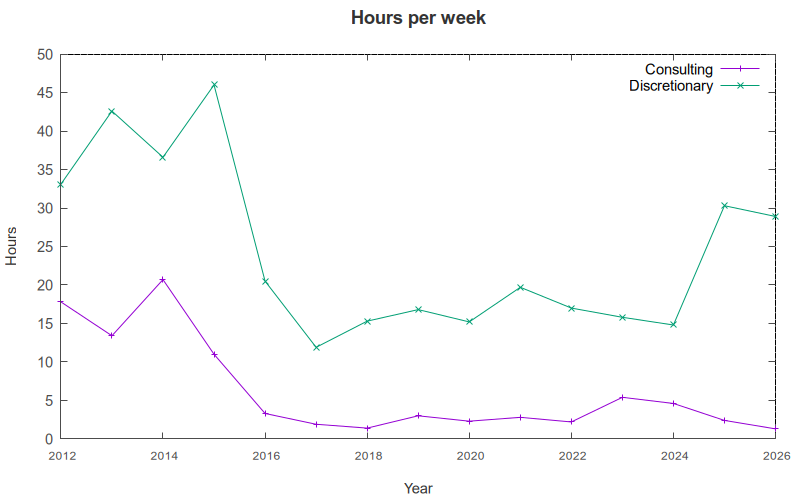
My consulting contract wraps up at the end of this month, and I'm satisfied by how everything has worked out. The clients are moving away from having contractors to focusing on full-time employees, which makes perfect sense. I am very part-time, and I like it that way. Over the last two years, I've averaged about one to two hours of consulting per week as I've trusted myself with more self-directed time, so my day-to-day routines aren't going to change much. Even though the kiddo is ten and is reasonably well settled into virtual grade 5, and my husband retired in Dec 2024 and can therefore be around if she needs help, I don't want to ramp up my work.
It did feel really nice to have clear requests, get things done, check things off lists, and solve people's problems. I learned that I tend to be more of a follower than a leader; I don't usually come up with generally-useful ideas myself, but I might be inspired by someone else's question or idea. Fortunately the low-energy days of pregnancy and parenting helped me learn a little more about adjusting to not always getting that kind of clearly-visible progress and working on my own things.
My initial five-year experiment with semi-retirement was interrupted in year four by parenting, but I think my time has now stabilized enough that we can probably consider the experiment resumed. As this consulting part winds down, I think I'll focus on my own interests instead of looking for a hustle. If I'm crunching my numbers correctly, our savings and investments can probably support our lifestyle just fine. My husband and I are both frugal by nature. If the markets crash significantly, the world has bigger problems and we'll need to figure out how to adapt anyway. In the meantime, I can sit out all the thrashing and carnage around artificial intelligence and large language models.
Retirement
I used to smooth over the initial awkwardness of the "So, what do you do?" small-talk question with saying, "Oh yeah, I do some consulting" or "These days, I'm focusing on my kiddo," but I guess I'm growing out of that phase. My real preoccupations tend to be too niche for conversation with, say, random French tutors: "I tinker with Emacs for fun. It's a text editor. Umm, that's an application you could use to write words or programs." It might be time to try out saying, "I like to program and write. Sometimes I draw." Or maybe I can get away with: "Finance, pretty boring, can't talk about it much." Depending on how energetic I feel, I can usually nudge the conversation into more interesting directions by asking the other person questions, anyway.
My husband has been in proper retirement mode for almost two years. I don't think he really does this small talk thing either. He enjoys volunteering with Bike Brigade, doing more coding and electronics, reading lots of books, and improving his health. Maybe I'll switch into proper retirement too. I'd like to get better at taking care of my health, and goodness knows I have a never-ending list of ideas I want to explore. It's a real privilege to be able to share what I'm working on and learning for free instead of joining the crowd of people trying to get other people to pay for or subscribe to vibe-coded apps and services.
Parenting
As I mentioned, the kiddo is 10, so this is an especially good opportunity to focus on spending time with her. I think she might be twice-exceptional. We're starting to see some areas where she struggles with things that might not be easily explained by her giftedness, like sensory sensitivities, emotional regulation, and social interaction. As we dig into it, I'm finding things on the self-assessments that apply to me too. For example, statement 41 on the Autism Spectrum Quotient: "I like to collect information about categories of things (e.g., types of cars, birds, trains, plants)." <gestures at Emacs News> I tend to score 40+ out of 50 on the whole self-assessment, with a threshold of 33 suggesting significant traits of autism, so yeah… Anyway, we'll see what the public school and public health systems might be able to help her with, but I'm not counting on much. Funding is limited, and lots of kids have a much harder time. For me, I don't need accommodations for work or school. Private assessments are expensive, and there's not really that much one can do for some things aside from trying to take better care of yourself, which I can do even without a formal diagnosis. (Earbuds for noisy environments, and knowing that I may need lots of quiet time; delegating social stuff to other people; not worrying too much about the kiddo while she doesn't feel like focusing on social skills - when she wants to, we can look into that.) So it'll probably help a lot to spend time figuring ourselves out, if the standard ways of doing things might not work so well.
Besides, it's fun to spend time together. We've been making the most of our season passes to the amusement park, and we've also been playing a lot of Minecraft together. She likes it when I play the same games she does. I'm finding ways to get more out of even the solo games we play side-by-side, like Pokémon. If I configure my controller to be usable with one hand, I can use the other to lift small weights, and I can listen to and repeat my French practice audio files. I won't have a kid forever, after all. My husband won't be around forever either. Good to make the most of the time we have.
I wonder what it'll be like for the kiddo to grow up seeing us both follow our own rhythms. I hope it will be good for her, despite the friction with school and other regimented systems. As I write this, she's sleeping in. I've told the school she'll probably be absent for the day. She might attend in the afternoon, or she might do her work asynchronously. (Update: She joined the afternoon class.) She tells me many of her classmates don't do the work, so the teacher spends quite a bit of time reminding people. I can see why she might not value class time as much. Having developed a keen appreciation of the difference being well-rested makes, I am okay with her experimenting with finding her own rhythms and seeing what kind of feedback she gets from her decisions. It doesn't make a ton of sense for me to say: you need to comply with school in order to get a good job. It's better to figure out something that works for you sustainably. A regular job might not be a good fit for her anyway. At least she knows she can figure out an alternative, and she can see the kinds of choices that help make that possible.
One might argue that this sort of life is too soft, too comfortable. It wastes "potential" and doesn't develop grit or persistence. I know that I can extend myself for things that matter to me, like this whole adventure into parenting. In general, though, I've greatly appreciated having plenty of slack in my life, allowing me to deal with things with less stress and more equanimity than otherwise. It feels to me better to start from a small, solid base than to feel overextended. As much as I can, I'd like to also help the kiddo figure herself out. Better to be in tune with yourself than to burn out chasing other people's priorities. Besides, it'll be interesting to see how much we can hack the system to work around its limitations.
My own interests
I'd love to keep tinkering around with Emacs, perhaps livestreaming so that people can ask questions along the way. I'd like to write about and package up my experiments so that other people can build on the ideas. I've been having lots of fun challenging my brain with French, too. In addition to the satisfaction of feeling more things click in my brain and the delight of helping the kiddo explore it outside school, I get even more reasons to play with my Emacs setup and my workflows. (Not that I needed the excuse, but still.)
So: a slow life, a "let's try things and see" sort of life, where we can experiment with things that might not yield immediate results, where it might not even be so much about getting answers but more about learning how to ask questions and listen. What could this look like? I think I might try a year-long experiment with proper retirement, zero consulting: spending time on the things that matter to me while funding expenses from savings and investments.
Time to see if my Ledger record-keeping will pay off when it comes to helping me calculate adjusted cost basis and capital gains. Let's see if I can file our taxes properly. There's paperwork, but it's probably manageable. (I still feel a sense of satisfaction from the time the Canada Revenue Agency asked about the medical expenses we claimed one year and I sent back a PDF with a proper table of contents that linked to each receipt, yay LaTeX.)
The intrinsic fun of learning things and trying things out should be plenty to keep me busy, and there's always helping out with the Emacs community or volunteering with Bike Brigade. We don't need to figure out grand, universal truths. It's enough to keep figuring out what might work in this particular moment for our peculiar selves, and perhaps share those notes in case they happen to resonate with someone.
Do I want to set up a Github Sponsors page, Patreon community, or Liberapay tip jar, like many cool Emacs people on the Internet? Not really, not for now. Times are rough for a lot of people, and I'm in a luckier position than most. I think I have enough for most of the things I want, and I like to consider those things carefully anyway. If people do want to share something, time would be amazing. I'm slowly getting the hang of paying people to help me learn, as in the case of French tutors for pronunciation and conversation and with Prot's Emacs coaching as a way of adding another perspective to some of my livestreams. I'm sure there are all sorts of things I could learn from people or work with people on.
Let's see what this retirement thing is like!